

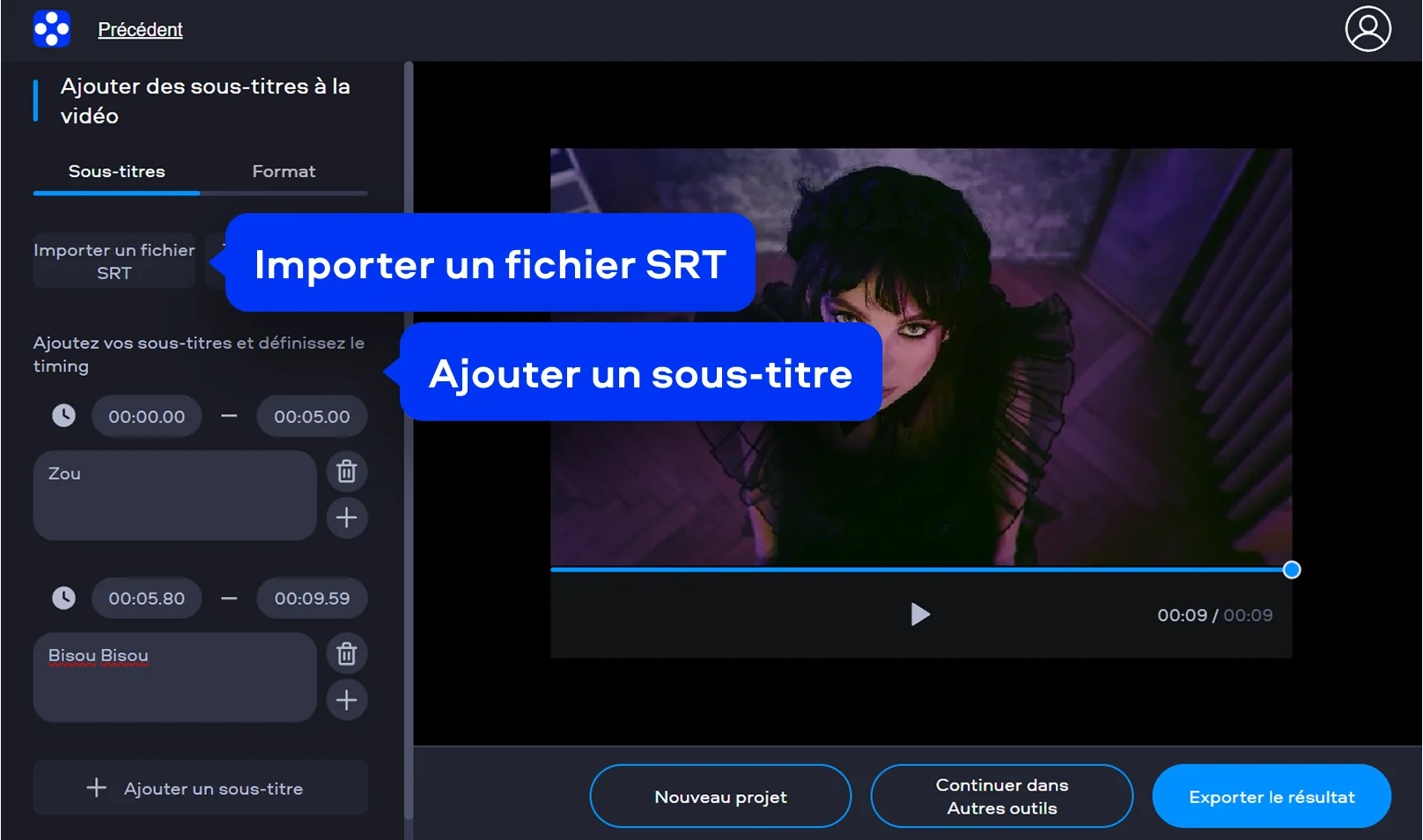
Adding subtitles to a video improves its accessibility, comprehension and performance on social media. They let viewers follow a tutorial without turning on sound, understand a foreign language, or make content accessible to deaf and hard-of-hearing people. Yet one question often comes up after recording a video: should you create an SRT file, use the VTT format, or permanently burn the text into the image?
The right method depends on the intended use. A separate file lets the viewer show or hide the text. Burned-in subtitles remain visible on all devices but can no longer be turned off. This guide explains the differences, details the steps for desktop and mobile, and then presents solutions to synchronization and display issues.
Key takeaways: only download and edit your own content, royalty-free videos, or media for which you have received permission. Before starting, review the rules related to copyright and permitted uses.
Why add subtitles to a video?
Subtitling isn't just for films. It meets several very practical needs: watching a video in a quiet place, clarifying a voice masked by music, translating content, or memorizing the steps of a training course. On social platforms, many videos are discovered with the sound off. A written message in the first few seconds therefore helps the audience immediately understand the topic.
- Accessibility: the content becomes easier to follow for deaf or hard-of-hearing people.
- Understanding: proper nouns, technical terms and fast passages are clearer.
- Viewing without sound: the video retains its meaning on public transport, at work, or in a noisy environment.
- International reach: a translation helps open content to other audiences.
- Reuse: The same video can be adapted for YouTube, Instagram, or TikTok with an appropriate presentation.
Separate subtitles or burned-in: what's the difference?
There are two main methods. Separate subtitles, sometimes called "soft subtitles", are stored in a separate track or file. The video player loads them at playback. Embedded subtitles, or "hard subtitles", are part of the image: each line is added to the pixels during export.
| Method | Advantages | Limits | Recommended use |
|---|---|---|---|
| Separate SRT or VTT file | Activatable, editable and translatable | The player must recognize the format. | Archiving, computer, media player, website |
| Track embedded in the container | Single video file, multiple languages possible | Compatibility varies by player | Personal library and playback on TV |
| Text embedded in the image | Visible everywhere, controlled formatting | Impossible to hide or fix without re-exporting | Reels, TikTok, Shorts and social posts |
To keep a reference copy, a separate file is usually the most flexible choice. To publish a short vertical video, burning the subtitles in is often more reliable, because the text remains visible even if the platform or app doesn't recognize the subtitle track.
SRT, VTT, ASS: which format should you choose?
The SRT format, simple and widely compatible
An SRT is a text file containing a number, a start time, an end time, and a subtitle line. Its simplicity explains its popularity. It works with many media players and editing programs. However, it only supports limited formatting.
1
00:00:01,000 --> 00:00:04,000
Voici le début de notre tutoriel.

2
00:00:04,500 --> 00:00:07,500
Nous allons ajouter des sous-titres à la vidéo.
The WebVTT format for web players
WebVTT, recognizable by the .vtt extension, is particularly well suited to videos streamed on a web page. Its structure is similar to SRT, but timestamps use a dot for milliseconds and the file begins with the header WEBVTT. It also accepts positioning information useful in some HTML5 players.
ASS and SSA formats for advanced formatting
ASS or SSA files support more styling: colors, fonts, placements and effects. They’re useful for creative projects but less universal than SRT. If the goal is simple playback across multiple devices, it’s best to keep an SRT copy in addition to the advanced file.
Step 1: legally obtain the source video
If the video belongs to you or its author permits downloading, copy its link then use All Downloader. Paste the URL into the designated field, let the service detect the platform, and select a version with audio. A clear audio track greatly facilitates transcription.
For content from YouTube, follow the guide dedicated to downloading a YouTube video. The site also offers dedicated guides for TikTok and Instagram. The availability of qualities always depends on the source. Private, protected or restricted content may not be accessible.
Then rename the file with a short, descriptive name, for example tutoriel-photo.mp4. Create a copy before making any changes: you can repeat the export without losing the original.
Step 2: create the subtitle text
The manual method gives the most control. Listen to a short segment, type the line, then set its start and end. For a long video, an automatic transcription tool can produce a first draft, but human proofreading is still essential. Proper names, numbers, brand names and technical terms are often misinterpreted.
- Transcribe the spoken words faithfully without adding information not present in the audio.
- Break long sentences into easy-to-read units.
- Place each subtitle at the moment the person starts speaking.
- Leave enough time on screen for comfortable reading.
- Review everything under real conditions, on both phone and computer.
Avoid overly dense blocks. Two short lines are generally more readable than a paragraph covering the image. If multiple people speak, identify them only when it actually helps to understand the exchange. For important sounds, a brief note like "[door slamming]" can improve accessibility.
Step 3: add an SRT file to the video on your computer
The quickest solution is to keep the video and the SRT file in the same folder. Give them exactly the same name before the extension:
tutoriel-photo.mp4tutoriel-photo.srt
Then open the video in a compatible player. If the text does not appear automatically, look for the "Subtitles", "Subtitle track" or "Add file" menu. This method does not modify the video and allows you to fix the text with a simple editor.
To combine the text and video into a single container without burning the letters into the image, import the MP4 and the SRT into a remuxing or conversion tool, then select an activatable subtitle track. Check the result on the target devices: some TVs recognize an external SRT but ignore an embedded track, while others do exactly the opposite.
How do I permanently embed subtitles?
Burning in subtitles requires re-encoding. In your editing software, import the video, add the SRT or create text blocks on the timeline, choose the style, then export a new video. This can take several minutes and may increase or decrease the file size depending on the settings.
- Create a new project with the same resolution and frame rate as the source.
- Import the video and the subtitle file.
- Check each timestamp on the timeline.
- Choose a legible font, high contrast, and a size suitable for mobile.
- Keep text away from the platform’s buttons, captions and navigation areas.
- Export as MP4 with a widely compatible codec, then watch the file in full.
For a vertical post, place the text high enough so it won't be hidden by the description or buttons. Before exporting, also adjust the framing for the target platform. The tips in the section All Downloader guides and news can complete this workflow to prepare and store your media.
Add subtitles on Android or iPhone
On mobile, two approaches are possible. A video player can load a separate SRT file for personal viewing. An editing app can generate or import the text and embed it into the final file. The principle is the same on Android and iPhone, though labels vary by app.
- Place the video and the SRT in an easy-to-find folder.
- In a player, open the tracks menu and select the SRT file.
- In an editor, import the video, then use the captions or automatic subtitles feature.
- Fix the text, cuts, and synchronization.
- Export a short test clip before processing the entire video.
A long video may require a lot of free space during export, because the app temporarily keeps the source, working files and final output. Delete unnecessary drafts only after you have verified the exported copy.
How to fix out-of-sync subtitles?
A constant offset means all subtitles appear too early or too late by the same number of seconds. In that case, apply a global correction. If the first minute is correct but the delay gradually increases, the cause is different: the subtitle file's timing probably doesn't match the video's playback speed.
Identical offset from start to finish
Spot an easily recognizable line, measure the offset, then shift all timestamps forward or backward. Some players allow a temporary adjustment in milliseconds. For a permanent fix, edit the SRT file with a subtitle editor.
Gradually increasing delay
Check that the SRT file matches the exact version of the video: same edit, same introduction and same duration. A commercial break, a few seconds removed, or different pacing are enough to desynchronize the end. You should then adjust at least two reference points, one near the start and one near the end, to recalculate the timing.
Why are accents or special characters displaying incorrectly?
Characters like 'é', 'ç' or 'œ' being replaced by symbols generally indicate a text encoding problem. Open the SRT file in an editor and save it as UTF-8. Do not change the extension and make sure the player loads the updated file.
If the file is rejected, also check its structure: numbers in order, complete timestamps, an arrow made of two dashes and a greater-than sign, then a blank line between blocks. A single syntax error can make part of the subtitles disappear.
Mistakes to avoid
- Using an automatic transcription without proofreading: it can change a proper name or alter the meaning of a sentence.
- Cluttering the screen: too many words reduce readability and hide important elements.
- Placing the text too low: social interfaces may hide it.
- Mixing several styles: A coherent presentation is more comfortable.
- Forgetting contrast: White text without an outline becomes invisible on a light image.
- Overwrite the original: always keep the source before embedding.
- Ignoring rights: being able to save content does not automatically give the right to republish or translate it.
Best practices for readable subtitles
Readability depends more on restraint than on effects. Choose a sans-serif font, limit the number of lines, and use an outline or a semi-transparent background. Make the text appear in sync with the speech without too-rapid changes. Important words can be highlighted sparingly, but a different color for every syllable quickly tires the eye.
Finally, test the video on a small screen. A subtitle that's comfortable on a monitor can become tiny on a smartphone. Also watch a sequence without sound: if the message remains clear and the text doesn't cover faces or demonstrations, the layout is doing its job.
FAQ on adding subtitles to a video
Can I add subtitles without modifying the video?
Yes. Keep the SRT file next to the video or add it as a selectable track in a compatible container. The text can then be shown or hidden without re-encoding the video.
What is the best subtitle format?
SRT is suitable for most uses thanks to its simplicity. VTT is particularly well suited for the web. For advanced styling, ASS offers more options. For social networks, burned-in text generally guarantees display.
Why isn't my SRT file displaying?
Check the file name, its UTF-8 encoding, the timestamp syntax and the player's compatibility. Also try adding the track manually from the subtitles menu. For questions related to the download service, consult the All Downloader FAQ.
Can subtitles be automatically translated?
Yes, but an automatic translation should be proofread. Expressions, humor, names and context can be misunderstood. Keep the original file and create a separate file for each language, for example video.fr.srt and video.en.srt.
Does All Downloader automatically add subtitles?
All Downloader is primarily used to retrieve the formats offered for compatible content and platforms. The availability of a subtitle track depends on the source and should not be assumed. If it is not provided, create an SRT or embed the text after legally downloading the video.
Conclusion: choose a method appropriate for the destination
To archive a video or watch it on a computer, a separate SRT file remains simple, lightweight and easy to correct. For a web page, VTT offers natural integration. For TikTok, Instagram Reels or YouTube Shorts, burned-in subtitles avoid compatibility issues and remain visible without activation.
Whatever the format, start from an authorized video and clean audio, correct the transcript, check the timing, and test the result on the actual screen your audience will use. You will get a clearer, more accessible video that’s easier to watch in any situation.