
Paste the exact link of a YouTube video you are authorized to keep. All-Downloader displays the available options depending on the video and its source. A private, removed, or login-required video may not be processed.

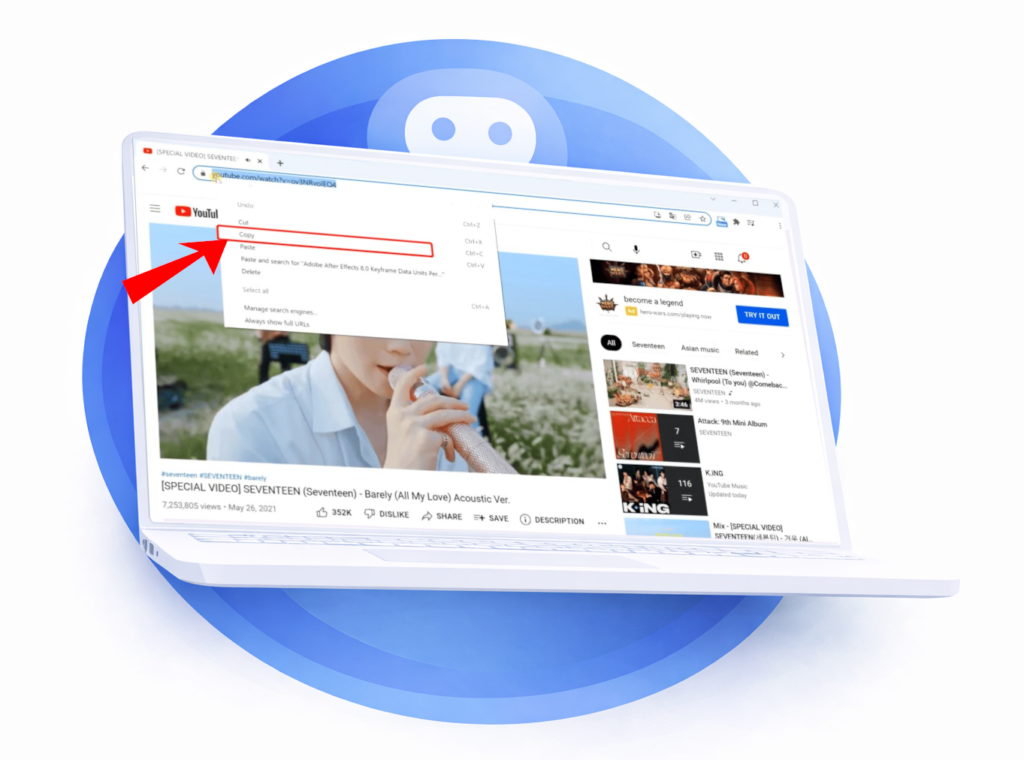
Copy the video link
Open YouTube, then copy the link of the video you want to download.
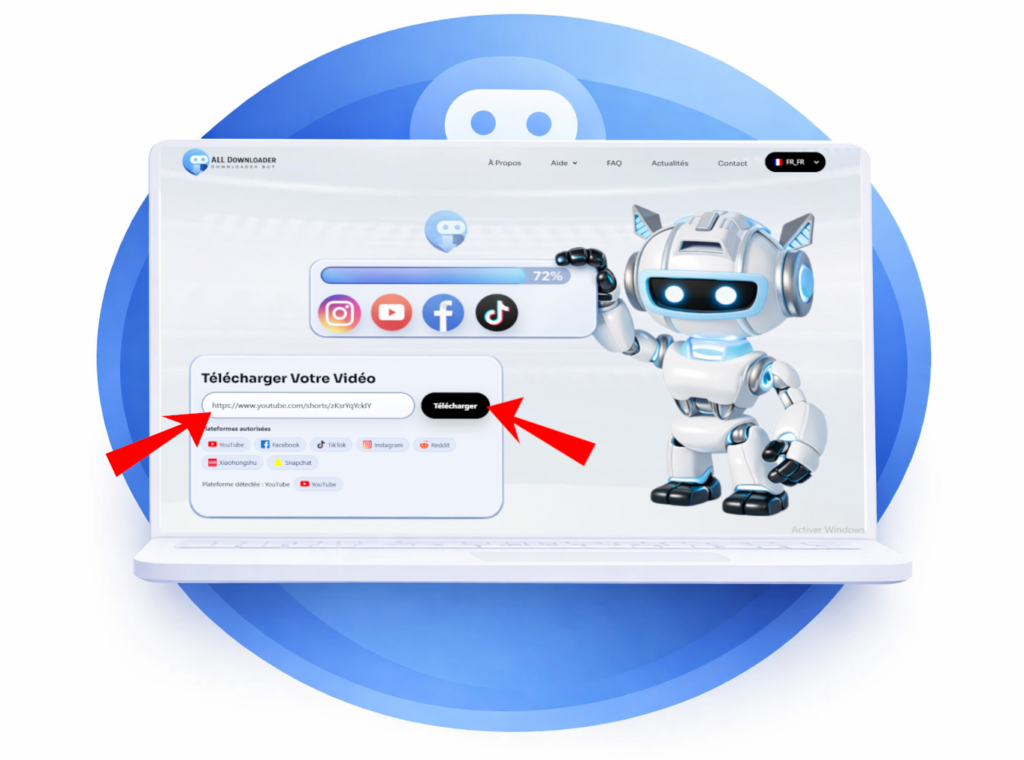
Paste the link into the designated field
Paste the link into the appropriate field. The platform will be detected automatically.
Then tap Download.
Preview and choose your options
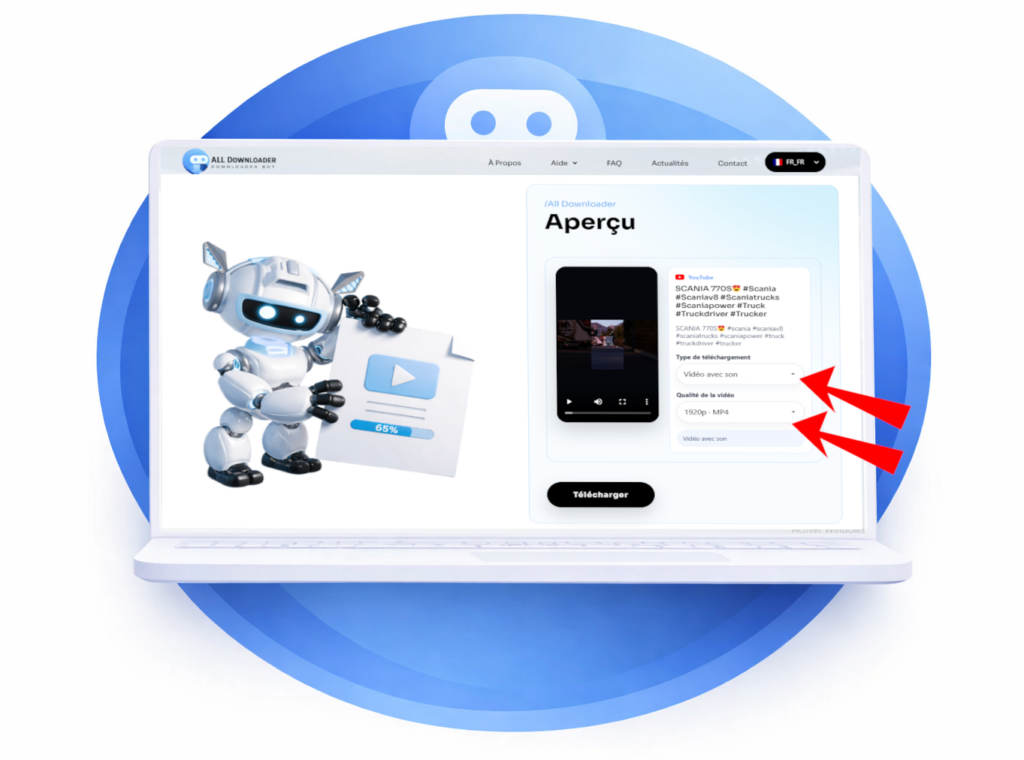
Once the link is analyzed, a video preview appears with its information.
Next, choose the download mode:
Also select the quality desired.
Start the download
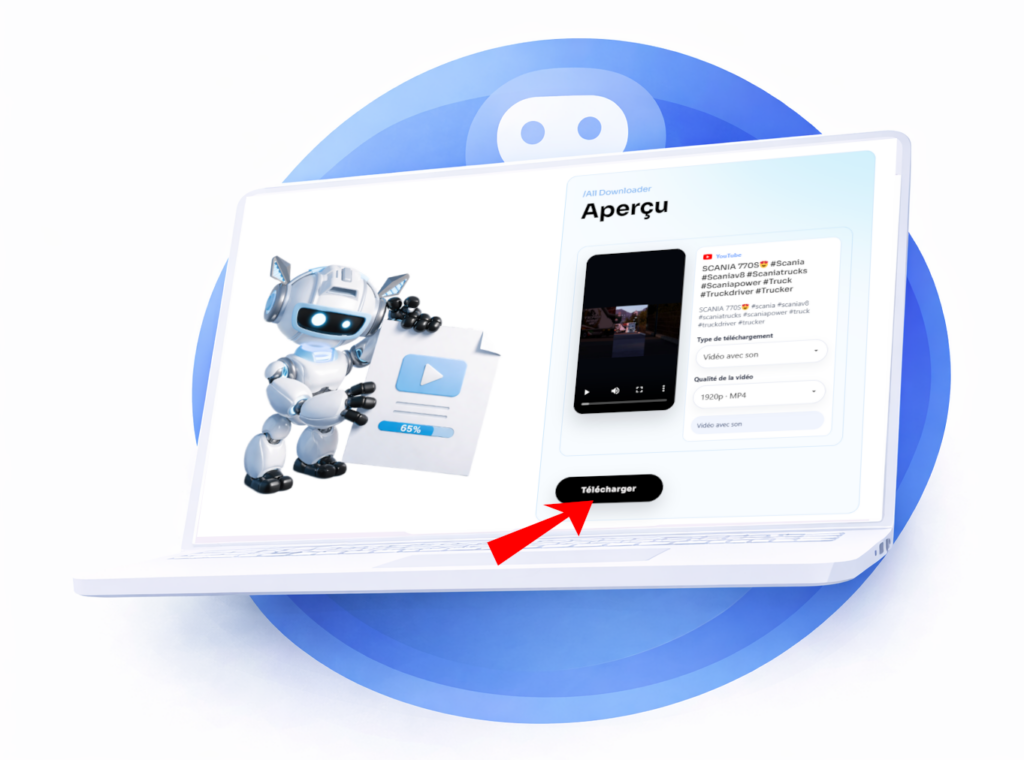
After choosing your settings, click Download.
Your audio or video will be successfully downloaded.
Need help copying the correct link and choosing an available format? See our Guide to downloading a YouTube video. Private videos or videos requiring a login may not be accessible to the tool.
Paste the link to a public video from a compatible source. If All-Downloader can analyze it, choose from the options shown. Private, removed, or login-required content is generally not accessible.
Quality depends on the file available at the source. All-Downloader cannot recreate details lost during publishing or provide a resolution the source does not supply.
Yes, if you have the right to download it and you respect the creator's rights as well as the platform's rules. Downloading a video does not automatically give you the right to republish it or use it for commercial purposes.
Yes, All Downloader is free and available without registration. Just paste the link to a public video to see the available download options.