

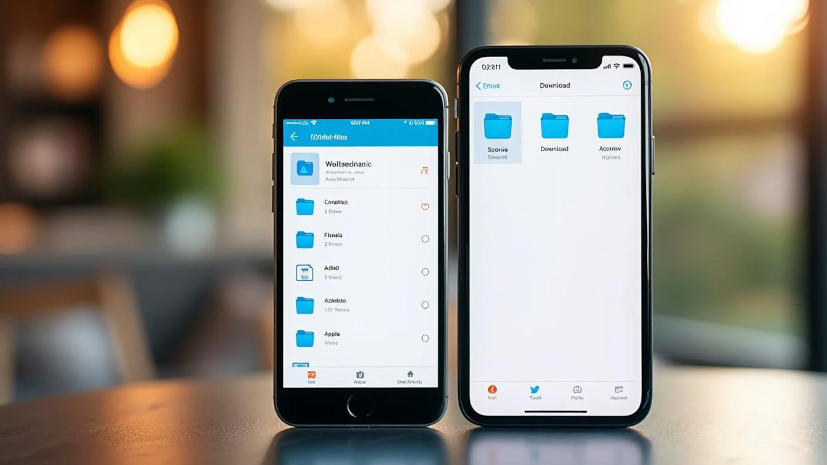
Downloading a file to your phone has become commonplace. You save a video, a PDF document, an image, an audio file, an attachment received by email, or a file retrieved from a website. Yet, once the download is finished, one question often comes up among users: where to find downloaded files on iPhone and Android ?
This problem is much more common than you might think. The download appears to succeed—no error message appears—but you can't find the file. Some users then think the download failed. Others repeat the same operation several times, creating duplicates. Still others spend ages searching in the wrong apps without understanding where their phone actually saved the content.
The confusion stems from the fact that smartphones don't all handle files the same way. On iPhone, a file downloaded from Safari doesn't always end up directly in the Photos app. On Android, the file may land in the Downloads folder, in the Files app, in a manufacturer-specific app, or sometimes in an app associated with that type of content. Add to that the differences between browsers, apps, cloud services and storage systems, and you get a real headache for users.
The good news is that there is a clear logic. Once you understand where downloads go on iPhone and Android, it becomes much easier to quickly find your files and avoid the most common mistakes.
In this article, we'll look in detail at where to find downloaded files on iPhone and Android, depending on the type of content, the browser used, and the source app. We'll also look at why some files seem to "disappear", how to find them faster, and which good habits to adopt so you never lose a downloaded file on mobile again.
Why can't users find their downloaded files?
The problem doesn't necessarily come from the phone. Very often the file was downloaded correctly, but the user is simply looking in the wrong place. This happens because we tend to expect a downloaded file to automatically appear where it seems logical. For example, if you download a video, you often expect to see it directly in the gallery. If you download a PDF, you expect it to open automatically in a reader app and remain visible there.
In reality, mobile systems work differently. A download often depends on several factors: the browser used, the file format, storage settings, the operating system, the source app and sometimes even the permissions granted to certain apps. That means a file can be saved correctly without appearing where you expect it to.
There's another factor: many users don't really know which app serves as the 'file manager' on their phone. On iPhone, the app Files is still underused. On Android, many people don't know about the folder Downloads or don't know whether their phone uses the Google Files app, My Files, File Manager, or a manufacturer-specific solution.
In short, the problem is rarely that the file has actually disappeared. It’s mostly a lack of clear organization for mobile downloads.
Where to find downloaded files on iPhone?
On iPhone, the most important thing to remember is: Most files downloaded from Safari are first saved in the Files app..
This is the most common mistake. Many users download a video or document, then immediately open the Photos app assuming everything will be there. But that's not always the case. On iPhone, downloads made from Safari usually go through a dedicated folder in the app Files, often called Downloads.
The Downloads folder in the Files app
To locate a downloaded file on an iPhone, you usually need to do the following:
- open the app Files ;
- go to the tab Browse ;
- open location On my iPhone or iCloud Drive, depending on the settings;
- Find the folder Downloads.
This is where many files downloaded from Safari or certain web services are saved by default. Once you get into this habit, finding a PDF, a video, a ZIP archive or an audio file becomes much easier.
Why do some downloaded files not appear in Photos?
Because a download doesn't necessarily mean a direct save to the gallery. If you download a video from a browser, it may be stored in Files like any other document. For it to appear in Photos, you often need to open it first and then explicitly save it to the gallery if the option is available.
This is an important distinction. Many people think their download failed when it has simply stayed in the Downloads folder instead of being moved automatically into Photos.
What if the download was made from another app?
In that case, behavior can vary. An email attachment, a document downloaded from a messaging app, a PDF opened from a link, or a file received from a third-party app can be:
- opened temporarily without being saved;
- stored in the original app;
- saved in Files ;
- offered for sharing to another app.
So sometimes you need to distinguish a simple temporary display of a true local recording. If the file was opened but never saved, it won't necessarily be in the Downloads folder.
Where to find downloaded files on Android?
On Android, the logic is a bit more flexible, but also sometimes more fragmented depending on the manufacturer. In general, downloaded files are located in the folder Downloads or Download, accessible from a file manager app.
Depending on the phone, this app may be called:
- Files ;
- Files by Google ;
- My files ;
- File manager ;
- or a name specific to the manufacturer.
The Downloads folder on Android
To find a downloaded file on Android, you often need to:
- open the phone's file app;
- Find the folder Downloads or Download ;
- Check recent files if the app offers it.
In most cases, a document, video, image or ZIP downloaded from the browser will appear there. It's the most reliable method.
The notifications panel: a useful shortcut
On Android, downloads often leave a trace in the notification panel. Right after downloading, the user can tap the notification to open the file directly. It's very handy, but it doesn't solve the long-term issue if you don't then know which folder it was saved in.
The right reflex is therefore to use the notification to open the file, then remember that it is usually in Downloads.
Why do some files seem to go to the gallery on Android?
Because some formats, notably photos and videos, can be detected automatically by the Gallery or Google Photos apps once they’re stored on the phone. That creates the impression that the file was saved “in the gallery,” when in reality it’s physically in a local storage folder, often the downloads folder.
In other words, the gallery may display the file, but the actual storage is often in a folder on the phone.
What's the difference between Photos, Gallery and Files?
This is a fundamental point. Much of the confusion comes from users mixing video player apps with storage apps.
- Photos on iPhone or Gallery on Android are mainly used to display images and videos.
- Files on iPhone or File manager on Android are used to manage all kinds of documents: videos, PDFs, audio, archives, office documents, etc.
A downloaded file can therefore very well exist without being visible in the Photos app. Conversely, a video may appear in the gallery while being stored elsewhere in the phone's file structure.
Understanding this difference already prevents a lot of unnecessary searching.
Where can I find a downloaded video on an iPhone?
If you have downloaded a video on iPhone from Safari or from an online tool such as All Downloader, it will often be located in:
- Files ;
- then Downloads.
If you then want to have it in Photos, you generally need to open it, then choose a save or share option to the photo library depending on the format and the app.
If you downloaded the video from a specific app, behavior may vary. Some apps save directly to Photos, others to their own internal folders.
Where to find a downloaded video on Android?
On Android, a downloaded video is very often found in:
- Downloads ;
- or in an equivalent folder in internal storage.
It can then automatically appear in the Gallery app or Google Photos if the system indexes that media folder. This may take a few moments depending on the device.
If the video doesn’t appear immediately in the gallery, you should locate it via the Files app. That’s often the most reliable method.
Where to find a downloaded PDF on iPhone and Android?
PDFs generally follow a simpler logic: they almost never go directly into Photos or Gallery. They are usually stored in:
- Files on iPhone ;
- Downloads or Download on Android.
On iPhone, the Files app is the first place to check. On Android, use Files by Google, My Files, or another file manager app.
PDFs can also be visible in some recent reading apps, but their actual location is often still the Downloads folder.
Why might a downloaded file be missing?
There are several possible reasons.
The file was downloaded to another location
On iPhone, Safari can be configured to save to iCloud Drive instead of On my iPhone. In that case, you need to look in the right location inside the Files app.
The download did not finish
An unstable connection or an interruption can prevent the final download, even if the user thinks everything is finished.
The file was only opened, not saved.
Some apps display a document temporarily without actually saving it. If you didn't choose a download or save option, the file may not exist locally.
The file is saved with an unclear name
Many downloads use technical or automatic names. The user may not recognize the correct file at first glance.
The file is in a cloud folder
On iPhone in particular, if settings point to iCloud Drive, the document isn’t necessarily stored directly on the phone’s local storage.
How can you find a downloaded file faster?
The best method is to use the built-in search.
On iPhone
In the app Filesyou can use the search bar at the top. If you know part of the file name, its format, or an approximate date, this can save valuable time.
On Android
Most file apps also offer a search. You can type:
- part of the name;
- the file extension, like PDF or MP4;
- or view recent files.
Filtering by content type is also very useful. If you're looking for a video, filter by videos. If you're looking for a PDF, filter by documents.
How to avoid losing your downloads in the future?
The best solution is to adopt a few simple habits.
First, after each significant download, open the file immediately to verify it’s there. Then, if the document really matters to you, move it into a clearer folder, rename it if necessary, or save it in the app that makes the most sense for your use.
On iPhone, it can be useful to check Safari settings to see where downloads are saved. On Android, it's helpful to identify once and for all your device's primary file manager app.
Another good rule of thumb is not to duplicate identical downloads. If you can’t find a file, first check the usual locations before downloading it five times in a row.
The role of a downloader like All Downloader
When you download a video or file from the web, it's even more important to know where it will be saved. A tool like All Downloader simplifies retrieving the correct content, but it is still useful to explain to the user where the file will then be stored on their device.
Conclusion
Learn where to find downloaded files on iPhone and Android has become essential, because we increasingly download content directly from our phones. The problem is usually not that the file has disappeared. It’s simply that it isn’t stored where we expect it.
On iPhone, the first place to check is the app Files, often in the folder Downloads. Android, you generally have to go through the folder Downloads via the phone's file manager app. Videos, PDFs, images and documents can then be opened, moved, or saved into other apps as needed.
Once you understand this logic, everything becomes much simpler. You waste less time, avoid duplicates, and better manage your mobile downloads.