

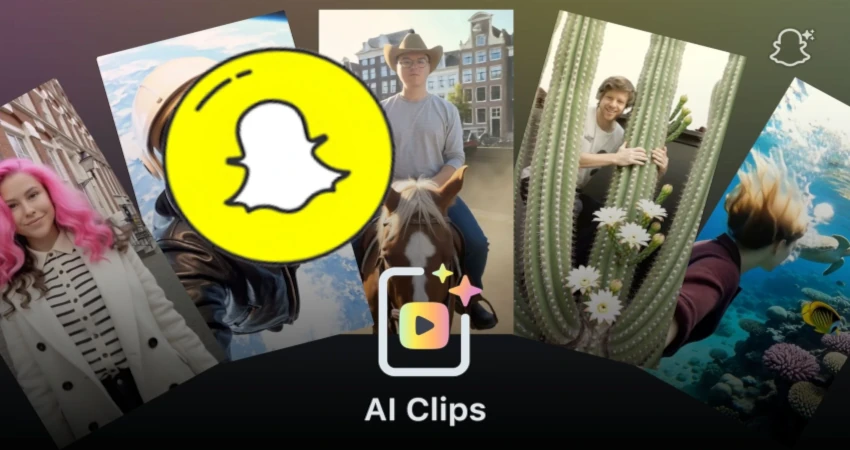
AI-generated video continues to flood social networks. After text-prompt video generators, AI filters, avatars, transformation effects, and automated editing tools, Snapchat is launching a particularly simple format: AI Clips. The idea is very clear: take a single photo, apply a predefined AI effect and get a short animated video ready to share.
This trend is important because it makes AI video creation much more accessible. Until now, many AI tools required writing a prompt, adjusting settings, choosing a style, waiting for a generation, and sometimes repeating the process multiple times. With Snapchat AI Clips, the experience becomes more direct: the user selects an image and the effect turns that photo into a mini-video. Snap explains that AI Clips are Lenses capable of transforming a photo from a Snap or the camera roll into a five-second AI video, thanks to a closed prompt system defined by the Lens creator.
For creators, influencers, brands, community managers or regular users, this type of content can quickly go viral. A travel photo can become a cinematic scene, a selfie can be animated, a pet photo can turn into a funny clip, and a product image can become a mini vertical ad. But one question quickly arises: how to save a Snapchat AI Clips video as MP4?
In this comprehensive guide, we'll look at what Snapchat AI Clips is, why this format is trending, how to save your own videos, how to use All Downloader when content is compatible and accessible, how to avoid quality loss, and what rules to follow before sharing an AI-generated video.
What is Snapchat AI Clips?
Snapchat AI Clips is a Lens format based on artificial intelligence. Instead of being a simple filter that adds glasses, a face effect, or a background, AI Clips transforms a still image into a short video. It works on a simple idea: the Lens developer or creator defines a creative direction in advance, and the user then applies that experience to a photo.
Snap notes that the AI Clips plugin for Lens Studio can generate five-second AI videos by combining a user image with a built-in prompt. Each Lens thus turns a unique photo into a dynamic video experience based on a predefined concept.
This is an important difference compared with classic AI video generators. The user doesn’t necessarily have to write a complex prompt. They don’t need to know styles, settings, or models. They choose a Lens, import or take a photo, and then get a short animation.
Snap also notes that Lenses created with the AI Clips plugin are available to Lens+ subscribers. That means availability may depend on the account, the country, access to Snapchat features and the type of Lens used.
Why is Snapchat AI Clips a trending topic?
Snapchat AI Clips is trending because it mixes three powerful phenomena: short-form video, artificial intelligence, and personalization. Users want content that's quick to create, easy to share, and original enough to grab attention in a crowded feed.
On TikTok, Instagram Reels, YouTube Shorts and Snapchat Spotlight, short videos must capture the viewer’s attention in a few seconds. An AI effect that turns an ordinary photo into a tiny animated scene can instantly create a surprise. That’s exactly what social networks are looking for: visual, fast, shareable formats that can provoke a reaction.
The five-second format is also strategic. A very short video can be watched multiple times, sent to a friend, added to a Story or used as an element in a longer edit. The content is brief enough to be consumed quickly, but visual enough to leave an impression on the user.
Why save a Snapchat AI Clips video as MP4?
MP4 remains the most practical format for keeping a video. It’s playable on almost every device: iPhone, Android, Windows, Mac, tablet, smart TV and video players. If you create an AI Clips video and want to keep it, send it, archive it, or reuse it in an authorized edit, MP4 is generally the best choice.
Saving a video as an MP4 also means you don’t have to rely solely on the Snapchat app. Social content can disappear, be deleted, expire, get stuck in an app, or become hard to find. By keeping a local file, you retain control over your creation.
It's even more important for creators. If an AI Clips video performs well, you may want to use it as part of a campaign, republish it on another platform with the necessary rights, add it to a portfolio, keep it as an example, or compare it with other versions.
A clean MP4 file can also be renamed, organized, stored in the cloud or transferred to a computer for more advanced editing.
How to save your own Snaps and videos from Snapchat?
For your own creations, the first method to use remains the one provided directly by Snapchat. The app lets you choose how Snaps are saved: to Memories, to the device Camera Roll, or to both depending on the settings. Snapchat says it’s possible to change the behavior of the save button in Memories settings, with options like Memories, Memories & Camera Roll, or Camera Roll.
This means that if you often create videos with Snapchat, it's best to check your settings before producing content. If the save button only saves to Memories, your video will stay in Snapchat. If you choose to save to the camera roll, it will be easier to find on your phone.
Snapchat also explains that you can download a Snap from Memories by opening Memories, pressing and holding the Snap, then using the option Export to choose where to download the content.
For a user creating AI Clips, the right reflex is simple: immediately save the video after creation, then check that it’s present in the phone’s gallery or in the Files app.
Export multiple Memories: useful for archiving your old videos
If you have a lot of Snapchat videos, manual export can become time-consuming. Snapchat also offers a method to download your data, with an option to export Memories. Official support says you need to sign in to your account, go to My Data, activate Export your Memories, choose a date range, confirm the email address, then download the export once it’s ready.
This method is useful if you want to back up a large amount of content. For example, if you’ve used Snapchat for several years and want to keep your old videos, memories, Stories or AI creations, exporting can be a good solution.
You should still keep a clear organization after downloading. Exports can contain many files. Create folders by year, by content type, or by project. If you're a creator, separate your personal videos, your professional videos, your AI tests, and your ready-to-publish exports.
How to use All Downloader with Snapchat videos?
All Downloader This can be useful when you have a compatible link to an accessible Snapchat video and your use respects the creator's rights. The process is the same as for other platforms: copy the correct link, paste it into All Downloader, start the analysis, then download the offered format if the video is supported.
However, it’s important to understand one major limitation: Snapchat contains a lot of private, ephemeral, or user-restricted content. An online tool should not be used to bypass the privacy of a private Story, a Snap received personally, or non-public content.
Proper use means saving your own content, downloading a compatible public video, or keeping content for which you have permission. If a video isn’t accessible via a public link or depends on your Snapchat account, it may not be downloadable with an external tool.
For your own AI Clips, the most reliable method remains direct export from Snapchat. All Downloader can be useful as a complement for Snapchat content accessible by link and compatible.
How to copy the correct Snapchat link?
The link is often the source of errors. For a tool to analyze a video, you need a precise link. Do not copy a general profile link, a page without a video, or an incomplete link.
When you see a public Snapchat video, look for the share option and use Copy link if it's available. Then paste this link into a browser to check that it opens the intended video. If the link only opens the app, a profile, or an empty page, it may not work properly in a downloader.
If you want to save a video that’s only in your Memories, use Snapchat’s official export instead. Content stored in Memories isn’t necessarily accessible via a public link.
The right approach is therefore to distinguish between three cases: a video you created and can export, a compatible public video for which you have the link, and a private video that should not be retrieved outside its context.
Why won't some Snapchat videos download?
Several reasons can explain a download failure. The video may be private, expired, deleted, restricted to certain users, or not available via a direct link. It may also be protected by Snapchat's settings or by the type of post.
The link may also have been copied incorrectly. Sometimes a link shared from an app contains redirects, temporary parameters, or information that works on mobile but not in a regular browser.
Finally, some videos created with AI effects can be integrated into Snapchat in a specific way. If the final file isn't directly accessible, exporting officially from the app remains the best option.
In any case, avoid making random attempts. First check whether the video is public, whether the link opens the content directly, and whether you have the right to save the file.
Vertical format, short duration and quality: points to check
Snapchat videos are often designed for mobile. The vertical format 9:16 is therefore the most common. It’s the natural format for Stories, Snaps and quick content. When you save an AI Clips video, keep this format if you want to repost it on TikTok, Reels, Shorts or Spotlight.
Don't automatically convert a vertical video to horizontal. That can add bars, crop the subject, or degrade the AI effect. A five-second video must be clear from the first frame. If you reframe it poorly, you can lose the main impact.
Also check the quality. Social videos are often compressed. If you export, send, download, then recompress the same file several times, the image can become blurry or pixelated. Always keep a clean master copy from the start.
For AI Clips, the short length can be an advantage: the file stays lightweight. But that doesn't mean you should neglect quality. A very short video needs to be sharp, readable, and visually impactful.
Snapchat AI Clips content ideas to test
Snapchat AI Clips can be used in many creative contexts. A travel photo can become an immersive mini-scene. A product image can be transformed into a short advertising video. A photo of a dog or cat can become funny, viral content. A selfie can take on a cinematic vibe. A restaurant photo can be animated for a more engaging Story.
For brands, the format is useful for testing quick concepts. A shop can create an animation around a product. A beauty salon can turn a before/after photo into a mini-video. A coach can use a still image as the basis for a dynamic Story. A creator can produce multiple variants and see which one attracts the most attention.
The secret is to start with a good image. A blurry, too-dark, or poorly framed photo will rarely produce a strong video. Choose a clear photo with a clearly visible subject, good contrast, and a simple composition.
Be mindful of faces, privacy, and rights
AI videos can feel magical, but they also raise important issues. If you use a photo that includes a person, make sure you have their consent before turning their image into a video and publishing it. This is even more important for children, relatives, clients, or people who did not ask to appear in AI-generated content.
Also avoid using the image of a celebrity, a brand, a well-known character, or protected content without permission. An AI video is still a creation, but it may incorporate elements that belong to someone else.
If you download a Snapchat video created by another user, do not repost it as if it were yours. Even if the content is short, it may be protected. Downloading does not mean you own the rights.
For responsible use, keep a simple rule: saving for yourself is one thing; publishing or publicly reusing is another.
Mistakes to avoid
- The first mistake is creating an AI Clips video without saving it immediately. If you like the result, export it right away to your device or to Memories.
- The second mistake is believing that all Snapchat content can be retrieved via a link. Many pieces of content are private, temporary, or tied to the app.
- The third mistake is recompressing the same file multiple times. Keep a clean original version in MP4.
- The fourth mistake is publishing an AI video featuring a person’s face without their consent. The ease of creation does not remove the rules for respecting someone’s image.
- The fifth mistake is poor file organization. If you create a lot of videos, rename and sort them from the start.
- The sixth mistake is confusing inspiration with copying. You can draw inspiration from a style or format, but you must not steal another creator's video.
Conclusion: Snapchat AI Clips makes AI video easier, but you must properly save your creations
Snapchat AI Clips shows a major evolution: AI video is becoming simpler, more social and more accessible. A single photo can now become a short animated video in seconds, ready to be shared in a mobile format.
But creating a video isn't enough. You must also know how to save it correctly. For your own content, check the Memories settings, use Snapchat export, and keep a clean MP4 version on your device. For compatible public content, All Downloader can help you retrieve a video from a link, provided you respect rights and privacy.
MP4 remains the most practical format for archiving, organizing, and replaying your videos. With a good organization system, you can turn your AI Clips into genuine creative resources for your Stories, Reels, Shorts, TikTok, or content campaigns.
AI video will continue to evolve. Users who know how to properly save, organize and use their files will have a real head start.