

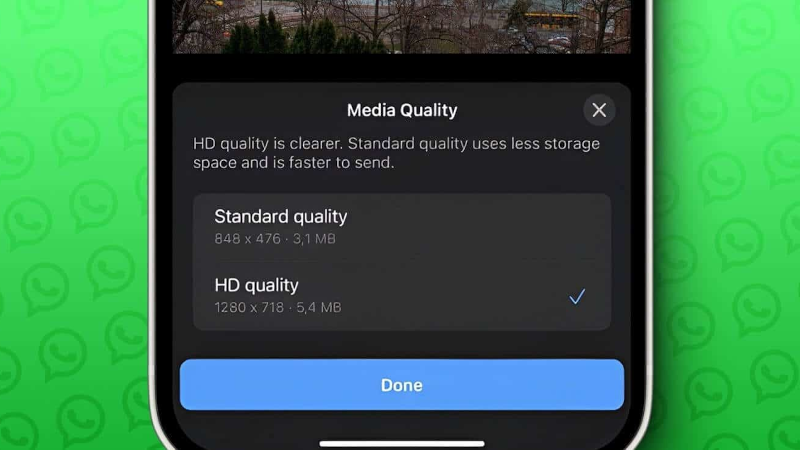
Sending a video on WhatsApp seems very simple. You choose the file, tap send, and expect the person on the other end to receive exactly the same video that's on your phone. Yet in reality many users experience the same disappointment: the sent video becomes less sharp, blurrier, more compressed, sometimes even visibly less appealing than the original. That's precisely why the question often comes up: how to send a video on WhatsApp in HD without it becoming blurry?
This problem is very common, because WhatsApp doesn't work like a simple "copy-paste" of a file. The app manages quality, size, sending type, network and compatibility in a very specific way. Today, WhatsApp does offer an option to send HD for photos and videos, and also documents a setting for media upload quality in the app. But that doesn't mean everything is sent in original quality, nor that all uses of WhatsApp benefit from this improved quality. For example, WhatsApp officially states that the HD is not available for statuses nor for profile pictures.
It's precisely this nuance that creates the confusion. Many people hear “WhatsApp has added HD”, then are surprised that a video still looks degraded. In reality, to get the best possible result you need to understand several things: where the HD option is, when it actually applies, why some videos become blurry nonetheless, and what alternatives exist if you want to share a cleaner file. WhatsApp also separates sending of media and sending documents, with an official limit of 2 GB for documents, which opens another sharing flow for large or important videos.
The good news is that there are simple habits you can adopt to noticeably improve the quality of videos sent on WhatsApp. You can't work miracles if the original video is already mediocre, but you can avoid most of the mistakes that unnecessarily degrade the result. And if you use a site like all-downloader.net To retrieve a video before sending it, these steps become even more important: the goal isn’t just to download a file, but to be able to share it afterwards under the best possible conditions.
In this article, we'll look at how to send an HD video on WhatsApp, why some videos become blurry, where the setting is, why statuses differ, how to handle large videos, and which methods give the best results on iPhone as well as Android.
Why does a video become blurry on WhatsApp?
When a video appears blurry after being sent, the first explanation is almost always the compression. WhatsApp has to move huge numbers of files between millions of users, often over weak mobile networks, in fast conversations and on very different devices. To keep the service running smoothly, the app often compresses media, which reduces file size but can lower image sharpness. WhatsApp explicitly acknowledges this in its Status help: media quality may be lower because files are usually compressed when shared in the app.
The second factor is the quality of the source file. A video that's already compressed, blurry, or mediocre to begin with won't become magical once it's sent. Even if you choose the HD option, you can't exceed the original video's true quality. The HD option helps preserve more visual information, but it doesn't recreate details that aren't present in the source file. This is especially true for videos retrieved from social networks, which are often already compressed before they even reach your phone.
The third factor is the upload context. A video sent in a chat is not treated the same as a status video. WhatsApp officially states that HD is not supported for status updatesThis means that even if your file is intact, your WhatsApp status may still appear less sharp than a file sent in a private or group chat.
Can WhatsApp really send a video in HD?
Yes, but you need to understand what that means. WhatsApp offers an official feature dedicated to photos and HD videos. Its help center explains that you can adjust the media upload quality in the app and choose HD quality in the settings. It also notes that you can continue to send individual items in standard quality if you wish.
In other words, HD does exist on WhatsApp, but it’s not automatically 'original unlimited quality everywhere'. It’s a higher-quality version for supported media, within the limits set by WhatsApp. This improves playback for many everyday uses, but it doesn’t remove all file size, network, or compatibility limits. In practice, this mainly means you should Enable or choose wisely use this mode to get the best possible result.
That’s also why many users miss the feature. They upload their videos as before, without checking whether the HD option is selected, then wonder about the result. If your goal is to avoid a blurry video, checking this is the essential first step.
Where to enable HD sending on WhatsApp?
WhatsApp states in its Help that you should go to Settings > Storage and data > Media upload quality, then select HD quality. This setting affects how the app handles sending compatible media. So it’s a key setting if you often share videos and visual quality matters to you.
In practical terms, this means that before sending an important video, you should check this setting. Many people never do, yet later complain about the quality. If you switch devices, reinstall WhatsApp, or have never explored these settings, it's very possible you're still on Standard mode rather than HD.
We should also keep in mind that HD can use more data and take a little longer to upload. It's the logical trade-off for a cleaner file. If your connection is weak, this can affect upload comfort, even though the final result remains visually better. WhatsApp Help Center also notes that a weak connection is one of the most common causes when you can't send or download media properly.
Why your video remains blurry even with the HD option
This is probably the most important question. If you've enabled HD but the result is still disappointing, several explanations are possible.
The first is that your source video is not clean enough. A video already captured in medium quality, or downloaded from a highly compressed source, will remain limited even after a good upload. The HD option doesn't fix the source; it mainly prevents making it any worse.
The second is that you aren’t sending the video to the right usage contextIf you post it as a status, WhatsApp notes that HD isn’t supported for this format. A clear video in a chat can therefore appear blurrier as a status, simply because the processing rules aren’t the same. Also, video statuses have a maximum duration of 90 seconds, which also leads to specific handling of the content.
The third is the size and structure of the video. A long, large video with lots of movement, detail, or dark scenes generally suffers more from compression than a short, simple clip. Even in HD, some flaws become visible sooner on this type of content. WhatsApp also notes that certain high audio frequencies or formats from professional cameras may be less well supported.
WhatsApp Chat or WhatsApp Status: it's not the same thing at all
This is a point many people confuse. When you send a video in a conversation, you use WhatsApp's media or document sending system. When you post a video on status, you're using a different logic. And WhatsApp is very clear: the HD is not supported for statuses.
This means that if your goal is really to share a clean, sharp, and pleasant-to-watch video, it's better to opt for a one-on-one chat or a group rather than a status. Statuses remain very convenient for quick posts, but they're not the best choice if visual quality is a priority. WhatsApp also notes that the quality of media shared as a status can be lower than the original file.
In short, if you want to prevent a video from becoming blurry, start by choosing the right way to send it. Many disappointments simply come down to that.
When to send the video as a document rather than as media
This is the most useful tip when file fidelity really matters. WhatsApp handles them separately media and the documents, and its official help specifies that the maximum document size is 2 GB.
In practice, if your goal is to preserve the file you downloaded as much as possible, uploading to document is often the most interesting strategy to try, especially for an important or large video. It avoids going through the usual 'gallery' sharing flow designed for quick visual convenience. It's not officially presented as a 'no-compression' guarantee, so be careful in how you phrase it, but it's clearly the mode to favor when you want to transfer the file rather than a simple media optimized for chat.
This is particularly useful if you have used all-downloader.net to retrieve a video and then want to send it as-is to someone. In that case, sending the file as a document is often more consistent than sending it as a simple video from the gallery.
What to do if the video is too large to be practical on WhatsApp?
If the video is very large, you have two priorities: preserve quality and be able to share it. WhatsApp allows documents up to 2 GB, which already allows a lot of leeway. But that doesn't mean the experience will always be smooth if the connection is poor. A large HD or Full HD file requires a good network, otherwise sending can be slow or fail. WhatsApp also notes that a weak connection is one of the main causes of trouble when sending or downloading media.
The correct approach is to:
- check the network quality before sending;
- use document mode if the video really matters;
- avoid the status if quality is a priority;
- and possibly trim or pre-cut the video in advance if it exceeds your actual needs.
The goal isn't necessarily to send the largest file possible, but to send the best practical compromise.
iPhone and Android: is there a difference?
In essence, no: WhatsApp's rules remain largely the same. The HD option and the limits related to statuses or documents are mostly determined by WhatsApp itself, not the phone used. What changes more is how you locate the file, select it, and send it.
On iPhone, a downloaded video can be found in Files rather than in Photos, depending on how it was retrieved. On Android, it may be in Downloads or in the file manager. It may seem secondary, but it's very important: many people think they're sending "the right video" when they've actually selected a different version or followed the wrong path on the phone. This file confusion can also explain a disappointing quality result.
To get the best result, first make sure you are starting from the good source file on your device before sending via WhatsApp.
The most common mistakes that make videos blurry
The first mistake is to assume that status and chat receive the same level of quality. That's not the case, since WhatsApp clearly documents that HD is not available for status.
The second mistake is sending the video in standard mode when the user expected HD. If the setting Media upload quality has not been verified; one may very well have been uploading in standard quality for a long time without knowing it.
The third mistake is using a video that was already too compressed to begin with. If the source file is mediocre, uploading it will only further expose its limitations.
The fourth mistake is neglecting the network. A poor network doesn’t always directly corrupt the final file, but it can disrupt sending, give a bad impression, or cause multiple confusing attempts. WhatsApp clearly indicates that a weak connection is a common problem for sending media.
The fifth mistake is not considering sending in document when file quality is truly a priority. WhatsApp explicitly offers this mode with a 2 GB limit, and many users don't know about it.
The best method if you start with a video downloaded from all-downloader.net
If you retrieve a video via all-downloader.net, the cleanest method is as follows:
- Downloads the best available version of the file.
- Check the playback on your phone before sending.
- On WhatsApp, enable the HD quality in the media settings if you plan to send it as a regular video.
- If the video is important or large, instead try sending it via document.
- Avoid the status if you want to preserve the best possible quality, since WhatsApp doesn't support HD.
Conclusion
Sending a video on WhatsApp without it becoming blurry is entirely possible, but you need to understand how the app handles files. WhatsApp does offer a sending HD for media, via upload quality settings, but this improvement does not apply to statuses, which remain compressed and limited to 90 seconds. Also, when the exact file quality really matters, sending as document is often the most logical option to choose, with an allowed size of up to 2 GB.
The best strategy is therefore simple: start from a good source, make sure the HD option is enabled, avoid the status if sharpness is a priority, and use document mode for important or large videos. With these few habits, the quality difference is immediately noticeable.