

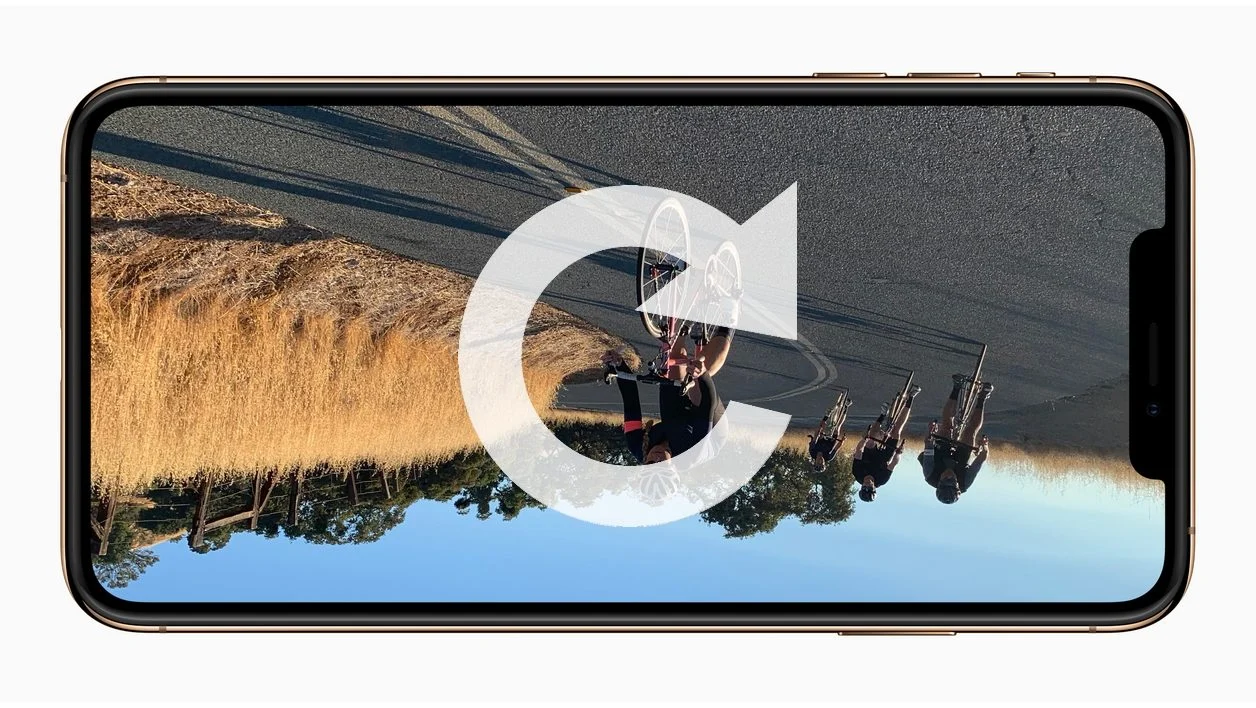
Is your video opening on its side or completely upside down? To rotate an MP4 video and save the result, you can use Shotcut: open the file, fix its rotation in properties, check the project format, then export a new video.
Be careful not to confuse an orientation correction with a crop. Uprighting a person in the frame and converting a horizontal video to vertical are two different operations. Here’s how to choose the right method and avoid black bars or unintended distortion.
How do I rotate a video to the correct orientation?
To correct a file shot on its side, start with a 90° or 270° rotation. If the image is upside down, a 180° rotation may be necessary.
- Keep your original video.
- Open a copy in Shotcut.
- Locate the Rotation setting in the clip's properties.
- Choose the orientation that makes the image upright.
- Check the project dimensions and the framing.
- Export a new MP4 file.
- Open the result in another player to check it.
If a player already plays your video correctly, test the file in a different application before editing it. This helps determine whether the problem is with the file itself or just with how a player interprets it.
Rotation, flip and cropping: what's the difference?
These three operations alter the image in different ways. Choosing the wrong one can make the result look less natural.
- Rotation: it rotates the entire image. It lets you straighten a video filmed or displayed on its side.
- Mirror effect: It mirrors left and right, or flips top and bottom. Text may then appear reversed.
- Cropping: it keeps only part of the image to change the composition or format.
If a person appears sideways on screen when they were standing during filming, check for a rotation correction. If they already appear upright in a horizontal video, rotating the image won't produce a usable vertical format: you'll need to adjust the framing instead.
Step 1: open the video in Shotcut
Download Shotcut from the official software websitethen open your video file. Work with a recent version and keep the original in a separate folder.
Play a few seconds to check the initial state: orientation, audio, and framing. Note what you want to correct before adding effects.
For a simple orientation correction, avoid combining multiple rotation settings. A rotation in the properties followed by another in a filter can make diagnosis difficult if the result is incorrect.
Step 2: adjust the rotation in properties
Select the video to correct, then open the panel Properties, called Properties in the English interface. Find the setting Rotation.
To restore the correct orientation of a video rotated in quarter turns, the Shotcut team recommends this properties setting rather than using a rotation filter added solely to fix orientation.
- Try 90° for a video on its side.
- Try 270° if it’s rotating the wrong way.
- Use 180° if the top and bottom of the image are inverted.
Check the result in the preview. Labels and control layout may vary depending on the software version and language.
Step 3: Verify the project format
A properly shot image can still appear in an unsuitable frame. For example, a vertical video placed in a horizontal project will usually leave empty space on the sides.
In Shotcut, check the video mode of the project, accessible from the settings. Choose an orientation that matches the expected result.
- Horizontal project: for example, 1920 × 1080 pixels.
- Vertical project: for example, 1080 × 1920 pixels.
These dimensions are examples of formats. They do not mean your video should be scaled up to that resolution. A low-detail source will not gain new detail by exporting to a larger size.
Why do black bars appear after rotation?
Black bars appear when the image's aspect ratio differs from that of the final frame. They preserve the entire image without distorting it.
You then have several options:
- Adjust the project format: choose a vertical or horizontal frame that matches the corrected video.
- Keep black bars: this preserves the entire image within a different frame.
- Crop: fill the frame more by accepting that part of the edges will be cut off.
Avoid stretching the image to fill the screen. Faces and objects may become distorted. Before any cropping, check that important elements remain visible throughout the sequence.
Step 4: export and save the corrected video
Saving the Shotcut project preserves your editing work. To produce a video that can be played independently of the software, you must also export the result.
- Open the export panel.
- Choose an MP4 output setting appropriate for your device.
- Check the resolution and framing of the expected result.
- Give the file a new name, for example: video-orientation-corrigee.mp4.
- Start the export and wait for it to finish.
- Open the file you obtained in a standalone player.
Check the start, middle, and end. Also check the audio and, if needed, playback on the phone or TV the video is intended for.
Does rotating a video reduce its quality?
It depends on the method used. Some tools only change an orientation flag, while an export from editing software can re-encode the images.
When a new encoding is applied, the quality depends on the chosen settings. Avoid unintentionally reducing the resolution or using excessive compression.
To limit cumulative quality degradation, start from the original video if you need to start over. Avoid re-exporting an already compressed copy multiple times.
If your goal is also to reduce the file size, consult our guide to Reduce the size of an MP4 video without significantly degrading quality.
The video looks fine in the preview, but not after export
Start by opening the exported file in a second player. Then make sure you are viewing the new video and not the original or an older version.
In the project, check the rotation settings and any filters added. If you use proxy files to ease editing, also test without that mode: the Shotcut team documented cases where the preview and the export did not have the same orientation in certain conditions.
To avoid immediately restarting a long process, first test a short segment. If the file does not open at all, consult our guide on the Downloaded videos cannot be played.
FAQ: rotate an MP4 video
How to rotate a video 90 degrees?
In Shotcut, select the clip and use the Rotation setting in its properties. Choose 90° or 270° depending on the required direction, then check the project format before exporting.
Why is the video still upside down after saving?
You may have saved only the editing project. Export a new video file, wait for processing to finish, and open that file to check its orientation.
Can you turn a horizontal video into a vertical one by rotating it?
If the subject already appears upright, rotating the entire image will tilt it on its side. To create a vertical version, instead adjust the framing and the crop, checking which parts of the image will be removed.
Can a recovered video be repaired with All-Downloader?
Yes, if the file can be opened in the software and you have the necessary rights to modify it. Uploading and rotating are two separate operations: the editing software works on the copy saved on your device.
Check the orientation before sharing
To put a video the right way round, first correct its rotation, then check the project's aspect ratio. Export under a new name and check the final file on the intended device.
This final check lets you spot incorrect orientation, overly tight cropping, or insufficient quality before sending the video.