

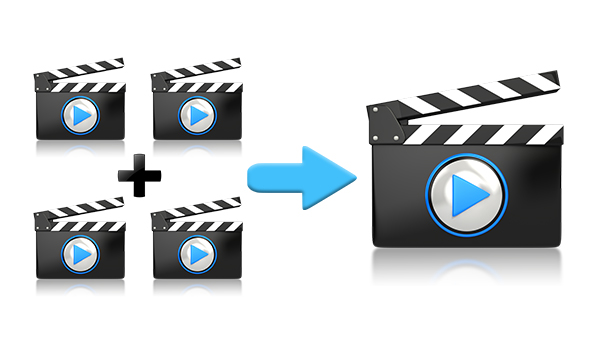
You have multiple clips and want a single file to watch or share? To merge MP4 videos, you can place them one after another in editing software, then export the whole. If the files have compatible technical characteristics, assembling without re-encoding may also be possible.
Here's how to choose between these two methods, arrange your videos in the correct order, and check the result before deleting or moving your original files.
Which method should you use to combine multiple videos?
The choice depends on the expected result and the characteristics of the files.
- You want to adjust the framing, trim passages, or add transitions: use a video editor like Shotcut.
- Do you just want to stitch together compatible files: try a merge without re-encoding with LosslessCut.
- Your clips come from different devices or settings: An edit with a shared export allows you to define a single output format.
Don't choose based only on the file extension. Two MP4 files can use different codecs, resolutions, or audio settings.
Prepare videos before merging them
Gather your files into a working folder and open each one before you start. Make sure the video and audio work through to the end.
To avoid them being out of order, give them names that indicate their sequence. For example:
- 01-introduction.mp4
- 02-demonstration.mp4
- 03-resultat.mp4
In this example, the final video should present the introduction, then the demonstration, then the result. Verify this order in your editing software: the order of your folder alone is not enough to guarantee the edit order.
Keep the originals and allow space for the exported file. If a clip already fails to open, consult our guide on Downloaded videos cannot be played before integrating it into the project.
Method 1: Merge videos with Shotcut
This method is suitable when you want to assemble an edit and control its presentation. Download the software from the official Shotcut website.
1. Place the clips in the timeline
Open your files and add them to the same video track on the timeline, in the desired order. For a simple assembly, place each clip immediately after the previous one.
Avoid unintended gaps between clips and overlaps if you don't want a transition. Review the joins in the preview before proceeding.
2. Check the project format
Choose a final framing suited to the intended use: horizontal or vertical. If the clips don't have the same aspect ratio, decide how to present them without distorting the subjects.
You can keep the whole image with margins or crop it, accepting that part of the edges will be removed. Review each sequence: a setting that works for the foreground can cut an important element in the next shot.
3. Export a single file
In the export panel, make sure the selected source is indeed the timeline. Select an MP4 preset suitable for your destination, give the file a new name and start the export.
Saving the project does not replace this step: the project preserves your editing work, while the export produces the video to share.
Method 2: merge without re-encoding with LosslessCut
To simply join files together, LosslessCut offers a merge feature. Download the app from the official project links.
- Drag the files to be merged into the app.
- Check their order in the file list.
- Open the merge command, called Merge/concat depending on the interface.
- Enable the compatibility check when prompted.
- Choose the destination and a name different from the originals.
- Start the operation, then check all the connections.
This method requires compatible settings: codec, dimensions, frame rate and audio characteristics, among others. Clips from the same device with the same settings are a more favorable case, though they do not guarantee the result on their own.
If the software reports an incompatibility, don't force the merge assuming the file will be okay. Use an edit that re-encodes instead.
Why can two MP4 files be incompatible?
MP4 refers to a container. It can hold video and audio tracks encoded in different ways. So having two names ending in .mp4 does not mean the files have the same technical structure.
When merging without re-encoding, these differences can produce an incorrect result: only the first part may be playable, a clip can lose its video, or artifacts can appear at the junction.
Don’t just change the file extension. To harmonize different clips, use an export that produces consistent tracks throughout the edit.
Can you merge without losing quality?
A merge without re-encoding copies compatible data without applying new compression to the images. However, it doesn't allow all the operations of a conventional edit.
With a re-encoded export, quality depends on the output settings. Avoid unnecessarily reduced resolution or excessive compression, then compare the result with the sources.
If the final file is too large, our guide to reduce the size of an MP4 video will help you distinguish the possible settings.
Post-merge checklist
Don’t check only the first few seconds. An error can appear at the start of the second or third sequence.
- Are all the clips present and in the right order?
- Does each splice play without an unexpected black frame?
- Is the audio still present and in sync?
- Are the volume differences acceptable?
- Does the framing keep the important elements in the frame?
- Does the last clip end at the right point?
- Does the file work on the device it's intended for?
FAQ: Merge MP4 videos
Can you merge videos of different sizes?
Video editing software makes it possible to integrate them into a common frame. You'll need to check their presentation and, depending on the choice made, accept margins or cropping. Merging without re-encoding requires greater compatibility.
Why does the final file contain only one sequence?
In editing software, check the source selected for export. You may have exported the open clip instead of the entire timeline.
Do you need to add a transition between each video?
No. A straight cut is enough for a simple edit. Add a transition only if it serves the edit, then check its effect on the picture and sound.
Does All-Downloader merge videos?
This tutorial presents separate tools for working on local files. All-Downloader lets you inspect the download options for supported links; the assembly shown here is then performed in Shotcut or LosslessCut.
A single file, verified to the end
To merge multiple videos, start by sorting them and testing playback. Then choose either an edit with export or a merge without re-encoding depending on their compatibility and the changes you want.
Keep the originals until you've checked every sequence of the output. A successful playback at the start isn't enough to validate the entire file.