

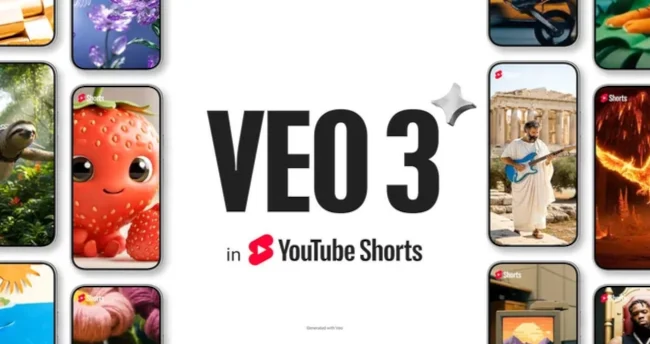
Short-form videos are evolving fast. After TikTok, Instagram Reels and CapCut, it's now the turn of YouTube Shorts to integrate more and more artificial intelligence tools. With the arrival of models like Veo 3, creators can generate clips, animate ideas, create vertical videos, add sounds, and produce content faster.
But this new way of creating poses a very real problem: comment sauvegarder ses YouTube Shorts générés avec l’IA sans perdre la qualité ? Many creators generate a video, publish it directly, then later realize they didn't keep the original file. As a result, they have to retrieve a compressed version, search for the file on their phone, or recreate the content from scratch.
In this guide, we'll cover how to back up your YouTube Shorts created with Veo 3 or other AI tools, which format to choose, how to avoid quality loss, how to organize your files, and what to do if you've already published the video without keeping the original.
Why YouTube Shorts with AI is becoming an important topic?
YouTube Shorts has become an essential format for creators. Short videos let you test ideas, reach a new audience, repurpose long-form content, post more often, and create formats that are quicker to consume. With the arrival of AI tools, this format is becoming even more accessible.
Instead of filming everything yourself, a creator can now use AI to generate visual elements, create a background, produce a short clip, transform a photo, develop an idea, or add an ambiance. This speeds up creation, but it also increases the risk of losing files if a proper backup method isn’t put in place.
The issue is simple: an AI video may exist only within an app, a draft, a temporary project, or a creation interface. As long as you haven’t exported the final file, you depend on the tool used.
Veo 3, Shorts and AI videos: what you need to know
Veo 3 is a video generation model capable of producing visual content from instructions, with advanced capabilities around motion, style, mood, and audio. In the YouTube Shorts ecosystem, the goal is clear: help creators more easily produce short vertical-format videos.
For creators, this can be used for:
- generate a short clip from an idea;
- create a video background;
- turn a photo into an animation;
- create a visual atmosphere;
- test multiple versions of a Short;
- Create a video without a traditional shoot;
- prepare content for YouTube, TikTok, or Instagram;
- repurpose an idea into vertical format.
This development is interesting, but it makes saving even more important. An AI-generated video can be hard to recreate exactly. Even with the same prompt, the result can change. So save the correct versions as soon as they’re ready.
Why you should save an AI Short before publishing
Many creators think that publishing a video is enough to preserve it. That's a mistake. A video published on YouTube can be compressed, edited, cropped, or hard to recover in the same quality as the original export.
The simple rule is: the published version should never be your only copyBefore publishing, make sure to keep a clean copy on your phone, computer, or cloud.
Here's why:
- the published version may be compressed;
- the video may be deleted by mistake;
- a draft can disappear;
- an account may be blocked or inaccessible;
- the AI tool can change its rules;
- the original file may be clearer;
- you may need to repost the video elsewhere;
- you may want to resurface the video later;
- you may want to keep the prompt and the alternative versions.
If you regularly create videos with AI, saving should be part of your workflow, just like editing or publishing.
The proper workflow for creating and saving an AI YouTube Short
To avoid losing your creations, use a simple multi-step method. It works for YouTube Shorts, as well as TikTok, Instagram Reels, CapCut, Runway, Pika, Luma, and other AI video tools.
- Prepare your idea or your prompt.
- Generate the video with the AI tool.
- Watch the result to the end.
- Check the audio, framing, and text.
- Export the best version.
- Download the file to your device.
- Give the file a clear name.
- Place it in a dedicated folder.
- Add a copy to the cloud or your computer.
- Publish only after verifying the backup.
This method may seem simple, but it avoids the most common errors: file not found, video without audio, wrong version published, draft deleted, or poor-quality export.
Which format should you choose to save an AI Short?
The most convenient format for saving a short video is usually the MP4It is compatible with most phones, computers, browsers, video players, and social networks. If the tool offers multiple formats, choose MP4 when possible.
The MOV format can be useful on iPhone or Mac, especially if you work in an Apple environment. WebM may appear on some web tools, but it can sometimes be less convenient to play or repost depending on the platforms.
| Format | Advantage | Recommended use |
| MP4 | Highly compatible | YouTube Shorts, TikTok, Reels, archive, computer |
| MOV | Made for the Apple ecosystem | iPhone, Mac, video editing |
| WebM | Optimized for certain web uses | Web export, testing, temporary storage |
If your goal is to keep a simple, reusable archive, choose MP4. It's the most convenient format for publishing the same video across multiple platforms.
Which quality should you choose: 720p, 1080p or 4K?
For a YouTube Short, the 9:16 vertical format is generally most suitable. In terms of quality, 1080p is often sufficient to publish a clean short video on mobile. 4K can be worthwhile if the tool offers it and if you want to keep a high-quality version for editing, archiving, or future reuse.
Here's a simple rule:
- 720p: acceptable for a draft or a quick test.
- 1080p: good choice for YouTube Shorts, Reels and TikTok.
- 4K: ideal for a premium archive or a future edit.
Warning: a video exported in 4K won't necessarily be better if the generated source is limited. However, when the original quality is good, keeping the best available version can be useful.
How can you avoid loss of quality after publishing?
Quality loss often comes from multiple successive compressions. For example, you generate an AI video, send it via WhatsApp, retrieve it, re-edit it in another app, export it again, then publish it. Each step can reduce quality.
To maintain good quality:
- export directly from the AI tool;
- keep the original file;
- avoid sending compressed files via messaging ;
- avoid multiple re-exports;
- do not download a version that's already been published to repost elsewhere if you still have the original;
- use high-quality MP4;
- check the video before publishing it;
- Keep a copy in the cloud or on your computer.
If you've already lost the original, you can try to recover the published version, but it may be less sharp than the source file.
How to save an AI Short on iPhone?
On iPhone, an exported video may end up in Photos, Files, iCloud Drive, or in the folder of the app used. It’s therefore important to check the location immediately after export.
- Export the video from YouTube, the AI tool, or the editing app.
- Choose Save video if the option is available.
- Open the app Photos.
- Check the album Recent.
- If the video doesn't appear, open Files.
- Look in Downloads, iCloud Drive or On my iPhone.
- Move the video to a clearly named folder.
- Add a copy to iCloud Drive, Google Drive, or your computer.
If you can't find the file, see our guide: How to find a downloaded video on iPhone or Android.
How to save an AI Short on Android?
On Android, videos can be saved in Gallery, Google Photos, Files by Google, Downloads, Movies, Videos, or in an app-specific folder. So check several locations if the file doesn't appear immediately.
- Export the video from the AI tool.
- Open Gallery or Google Photos.
- Check recent files.
- Open Files by Google or your file manager.
- Look in Downloads, Movies or Videos.
- Move the video to a "Shorts AI" folder.
- Add a copy to Google Drive, OneDrive, or to your computer.
To avoid searching every time, create a folder dedicated to your AI exports. This will save you time if you publish often.
How to organize your AI Shorts on your computer?
If you create several AI videos per week, organization becomes essential. A “Downloads” folder filled with randomly named files quickly becomes unmanageable.
Here is a simple structure:
Shorts-IA/
├── 2026-07/
│   ├── Veo-3/
│   ├── YouTube-Shorts/
│   ├── Versions-finales/
│   ├── Brouillons/
│   └── Prompts/
├── TikTok/
├── Instagram-Reels/
└── Archives-HD/
For file names, use a clear structure:
2026-07-veo3-short-recette-ete-v1.mp4
2026-07-youtube-short-ia-voyage-final.mp4
2026-07-short-ia-produit-version-hd.mp4
A clear name makes it easy to find a video several weeks or months after it's created.
Why also keep the prompt you used ?
When you generate a video with AI, the final file isn't the only important element. The prompt used can be valuable if you want to recreate a version, make a series, change a style, or produce a similar video later.
Keep in a text file:
- the exact prompt;
- reference images;
- the requested format;
- the duration;
- the visual style;
- camera instructions;
- the name of the tool used;
- the generation date;
- the tested versions;
- the chosen final version.
This lets you build a proper library of AI creations instead of accumulating files without context.
Can you retrieve an already published YouTube Short?
If you've lost the original file but your Short is already published, you can sometimes retrieve a copy from YouTube. However, that copy may be compressed compared to the original export. It can therefore be useful for troubleshooting, but it doesn't replace a proper backup.
If the video belongs to you or you have permission to save it, you can use our dedicated page to download a YouTube video. The goal should remain clear: recover your own content, archive an authorized video, or keep a personal copy in compliance with applicable rights and rules.
If the video was also posted on Instagram or TikTok, you can check our tools to download an Instagram video or download a TikTok video.
What to do if the downloaded AI video has no sound?
With AI-generated videos, sound becomes an important element: voice, atmosphere, music, sound effects, or native audio. But it can happen that a downloaded file is silent, that the player doesn't recognize the audio track, or that the export didn't include the audio.
Before restarting the whole project, try these solutions:
- play the video in another player;
- test the file on a computer ;
- check the volume and Bluetooth;
- check whether audio exists in the source video;
- re-export in MP4 with embedded audio;
- avoid conversions that remove the audio;
- keep the original file before making any modifications.
To learn more about this issue, see our article: why does my downloaded video have no sound.
How can you avoid losing an AI YouTube Shorts draft?
Drafts are handy, but they shouldn't be considered a reliable archive. A draft can disappear after an uninstall, switching phones, an update, a sync error, or accidental deletion.
Before leaving an important video as a draft:
- export a copy if the option exists;
- keep the prompt;
- make a local backup;
- note the subject and date;
- do not uninstall the app before verification;
- do not change phones without backing up your files;
- Publish only when you have a clean copy.
A draft is a workspace, not a vault. For an important video, always keep an exported file.
How to repost an AI Short on TikTok or Instagram without losing quality?
If you want to post the same AI Short on TikTok, Instagram Reels, or Facebook, use the original exported file, not a video that's already been posted and then retrieved. The original usually contains the best available quality.
To repost properly:
- keep the original MP4 file;
- adapt the caption for each platform;
- check that the text isn't hidden by the interface;
- avoid unnecessary watermarks;
- check the audio after import ;
- choose an appropriate cover;
- avoid re-exporting multiple times ;
- keep a final version without excessive compression.
For videos created with Instagram Edits, you can also read: how to export an Instagram Edits video without losing quality.
Mistakes to avoid with AI Shorts
AI tools let you create quickly, but that speed can lead to publishing too fast. Before uploading an AI Short, avoid these mistakes:
- publish without keeping the original file;
- do not check the audio;
- do not watch the video to the end;
- leave unreadable text;
- use a blurry or poorly framed video;
- forget the prompt;
- do not organize files;
- deleting the draft too early;
- re-export the same file multiple times;
- publishing a video without checking the rights of the elements used.
AI speeds up creation, but it doesn't eliminate the need for quality control. A good creator always checks their file before publishing.
Complete checklist for saving an AI-generated Short
- Check that the video is complete.
- Watch the Short until the end.
- Check the audio.
- Export to MP4 if possible.
- Choose 1080p or the best available quality.
- Rename the file clearly.
- Create a folder “AI Shorts”.
- Save the prompt to a text file.
- Keep the source images or audio.
- Add a copy to the cloud.
- Test the video on another device.
- Publish only after backing up.
FAQ: YouTube Shorts, Veo 3 and AI video backup
How to save a YouTube Short created with AI?
Export the video from the tool you used, download the file to your device, choose MP4 if possible, check the audio and quality, then add a copy to the cloud or to your computer.
Which format should you choose for an AI Short?
MP4 is generally the most convenient format. It is compatible with YouTube Shorts, TikTok, Instagram Reels, phones, computers, and most video players.
Should you keep the prompt for an AI video?
Yes. The prompt explains how the video was generated and allows you to recreate a similar version later. It's recommended to save it in a text file along with the final video.
Can you retrieve a YouTube Short that's already been published?
Yes, if the video belongs to you or you have permission to save it. But the retrieved version may be compressed. The best solution is to keep the original export before publishing.
Why is my AI Short blurry after publishing?
The video may have been compressed, exported at low quality, or re-exported multiple times. To avoid this, keep the original, export at high quality, and avoid transfers through apps that compress files.
Why does my AI video have no sound?
The problem may stem from the file, the player, the audio codec, an incomplete export, or a source video with no audio. Test the video with another player and re-export it if necessary with embedded audio.
Where should AI videos be stored on a computer?
Create a dedicated folder with subfolders by month, tool, or platform. For example: Shorts IA, Veo 3, YouTube Shorts, Final versions, Drafts and Prompts.
Conclusion
YouTube Shorts with Veo 3 and AI tools open up a new way to create short videos. Creators can produce faster, test more ideas, and generate visual content without necessarily filming everything themselves. But this speed of creation makes backing up even more important.
An AI video is only truly secure once it's exported, downloaded, verified, and saved in a clearly labeled folder. Don't leave your only copy in a draft, an app, or an online interface. Keep the original file, the prompt, important versions, and a copy in the cloud or on your computer.
If you've already published your Short and lost the original, All-Downloader can help you recover your own public content from certain platforms, in compliance with applicable rights and rules. But to preserve the best quality, the best practice is always the same: back up your AI video before publishing.