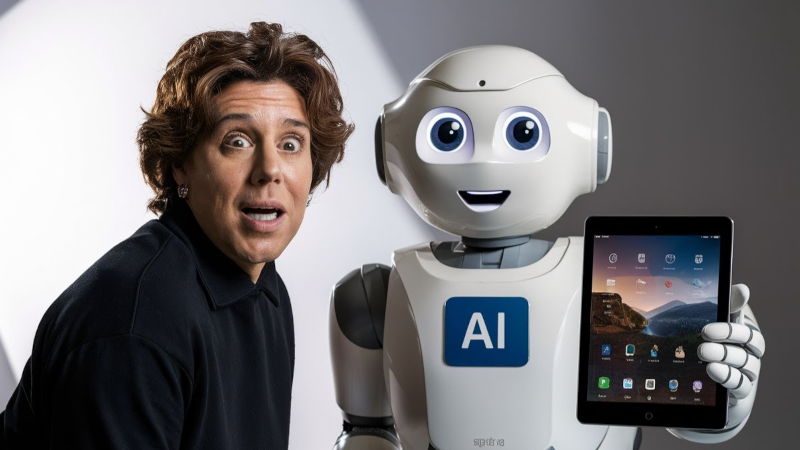
TikTok continues to integrate artificial intelligence into content creation. After filters, creative effects, generated voices, avatars and automated advertising tools, a new feature is attracting creators' attention: TikTok AI Alive. The principle is simple but very powerful: transforming a static photo into a short animated video using artificial intelligence.
With AI Alive, a single image can become more vivid. A sunset can be turned into an animated scene, a selfie can gain motion, a landscape can acquire a cinematic atmosphere, and a souvenir photo can become a mini vertical video ready to post as a Story. TikTok presents AI Alive as a creation feature integrated into TikTok Stories, able to transform static photos into short videos with motion, atmospheric and creative effects.
In this comprehensive guide, we'll explain what TikTok AI Alive is, why this feature is trending, how to create an AI video from a photo, how to save it correctly, why MP4 remains the most practical format, what mistakes to avoid, and how to use All Downloader responsibly when the content is compatible and allowed.
What is TikTok AI Alive?
TikTok AI Alive is a feature that allows you to transform a photo into a video using artificial intelligence. Instead of posting a still image, the user can add movement, atmosphere, visual effects and sometimes a sense of depth. The result is a short, more immersive video designed for mobile formats and Stories.
TikTok says that AI Alive is available in the Story Camera and that it allows creators, even without editing experience, to turn static images into more engaging short videos. The platform specifies that the feature works with a photo chosen from the Story album, then with the AI Alive icon available in the toolbar.
Practically, this feature is aimed at anyone who wants to quickly create content without filming a new video. You can start from a vacation photo, a product, an animal, a landscape, an outfit, a dish, a memory, or a creative image, then turn it into a short vertical video.
This is exactly the kind of feature that can go viral, because it makes video creation more accessible. You no longer need to master editing software or use a professional camera. A photo and an idea are enough.
How to create a TikTok AI Alive video?
Creating an AI Alive video is done directly from TikTok. According to the official help center, the user should open their profile, tap their profile photo or access the Story Camera, take or import a photo, then press the AI Alive button in the side panel. They can then enter a text prompt or choose a suggested prompt, and continue the generation.
Generation isn't necessarily instant. TikTok says an AI Alive video can take about a minute to generate, and that the user can continue using other features while waiting. A notification is sent when the video is ready.
The user can then post the video to their Story, regenerate the result with a new prompt, or stop generation. In-progress or completed videos can be found in Drafts or Notifications. TikTok also notes that AI Alive drafts expire after seven days.
This is an important detail: if you create an AI Alive video you like, don't wait too long to save or publish it. A forgotten draft can disappear, and you might lose an interesting version.
Why save a TikTok AI Alive video as MP4?
MP4 remains the most practical format for keeping a video. It works on most devices: Android, iPhone, Windows, Mac, tablet, smart TV and media players. An MP4-saved video can be stored in a folder, sent to another device, archived, edited, or viewed offline.
Saving a TikTok AI Alive video as an MP4 can be useful in several cases. You may want to keep a copy of your own creation, save a video before a Story disappears, reuse an animation in an edit, prepare a version for Reels or Shorts, or simply archive your AI experiments.
For creators, it’s even more important. An AI video can be the result of multiple prompt attempts. If a version works well, it should be kept. It can be used later for a campaign, a compilation, a portfolio, a teaser or a post on another platform.
MP4 also helps you avoid relying entirely on an app. If you only keep the video in TikTok, you depend on drafts, your account, the app, publishing rules, and internal storage. An MP4 copy gives you more control.
How to properly save a TikTok AI Alive video?
The best method depends on your situation. If you're the video's creator, always start by checking TikTok's save or export options. When a video is your own creation, exporting directly from the app is often the cleanest solution.
If the video is published publicly and you have the right to retrieve it, you can use a tool like All Downloader when the link is compatible. The principle is simple: copy the TikTok video link, paste it into All Downloader, start the analysis, then download the file offered in MP4 if the option is available.
However, two points deserve attention. First, not all Stories or TikTok formats are necessarily accessible in the same way as a regular video. Second, downloading a video doesn't automatically give you the right to republish it. If the video belongs to someone else, you must respect their rights.
The best practice is therefore: use All Downloader to save your own content or authorized content for personal or legitimate use. To repost a video by another creator, ask for their permission.
Copy the correct TikTok link: an essential step
Many errors come from a bad link. To download a TikTok video, you must not copy the profile link, the feed link, or a general page. You need to copy the exact URL of the video.
On mobile, open the TikTok video, tap Share, then choose Copy link. Then paste this link into All Downloader. On desktop, open the video in your browser, then copy the full address from the address bar or from the share button.
Before starting the analysis, you can test the link in a new tab. If it opens the correct video directly, that’s a good sign. If it only opens a profile, a home page, or an error, you’ll need to get another link.
For AI Alive videos in Stories, the link's availability can vary depending on the post type, privacy settings, and the content's lifespan. If the Story has expired or isn't publicly accessible, the analysis may fail.
Vertical format: why is 9:16 important?
TikTok is a platform designed for mobile. The majority of videos are vertical, in the format 9:16. AI Alive follows this logic: an animated photo becomes a short video optimized for the smartphone screen.
When saving a TikTok AI Alive video, it's best to keep its vertical format. Don't try to stretch it to horizontal. If you watch it on a computer or TV, there may be black bars on the sides, but that's normal. These bars preserve the aspect ratio.
If you want to reuse the video on Instagram Reels or YouTube Shorts, vertical format is an advantage. You will have less cropping to do. However, if you want to include it in a standard 16:9 YouTube video, you may need to add a blurred background or adjust the layout.
The most important thing is not to cut out the main elements. An AI video can contain subtle movements, faces, a product, an atmosphere or text. Poor cropping can reduce its impact.
Video quality: how to avoid a blurry video?
An AI video can lose quality if it is over-compressed, uploaded at the wrong resolution, or shared repeatedly via apps that automatically re-compress files.
To maintain good quality, save the best available version. If multiple qualities are offered, choose the one that matches your use. For a phone video, HD may be sufficient. For archiving or republishing, it's better to choose the highest possible quality.
Also avoid unnecessary conversions. If you already have a clean MP4, don't reconvert it multiple times. Each conversion can reduce sharpness, create pixelation, or degrade colors.
After downloading, always open the file. Check that the image is sharp, the video is complete, the audio works if the video includes any, and that the duration matches what you expected.
AI Alive, AI labels and transparency
AI-generated or -modified content raises an important question: how do you inform the public? TikTok explains that AI Alive videos are subject to several safety checks: the imported image, the written prompt and the generated video are reviewed before being shown to the creator, then a final verification takes place before publishing in Story.
TikTok also says that AI Alive Stories feature a label AI-generated and include metadata C2PA, a technology that helps identify that content was generated by AI even if it is downloaded and shared off-platform.
For creators, this is something to respect. An AI video can be creative, fun, or artistic, but it must not deceive viewers. If the video depicts a real person, a sensitive scene, false news, or an event that never happened, transparency becomes essential.
Can you repost a TikTok AI Alive video elsewhere?
If you are the video's author, you can generally reuse it under TikTok’s rules and the rights associated with the elements used. But if the video contains music, someone else’s image, a brand, a well-known character, or another protected element, you need to be cautious.
If the video belongs to another creator, you must not repost it without permission. Even if it was generated by AI, it may still be protected by rights. The creator chose the photo, the prompt, the editing, the context and the publication. Downloading does not mean claiming it as your own.
For a clean repost, ask the creator's permission, credit the source if allowed, and avoid altering the content in a way that could mislead the audience.
Common mistakes to avoid
The first mistake is waiting too long before saving a video as a draft. TikTok states that AI Alive drafts expire after seven days, so an interesting creation can disappear if it is not published or saved in time.
The second mistake is downloading a video without checking its quality. A video that's overly compressed may look fine on a phone but become blurry on a computer.
The third mistake is confusing saving with the right to republish. Keeping a video for yourself is not the same as reposting it on another account.
The fourth mistake is deleting the original too quickly. Always keep the best available version before creating compressed copies.
The fifth mistake is using sensitive photos or people’s faces without permission. AI can make an image more lifelike, but that also raises consent issues.
Conclusion: TikTok AI Alive opens a new way to create videos
TikTok AI Alive shows how fast video creation is evolving. A simple photo can now become a short animated video, ready to be posted as a Story and visible across multiple areas of TikTok. For creators, it's a new way to tell a story, repurpose an image, test a concept, or produce content without filming.
But creating a video isn't enough. You also need to know how to save it, organize it, and keep it in a practical format. MP4 remains the best choice to keep a video playable on almost every device. With All Downloader, it is possible to retrieve certain TikTok videos from a link when the content is compatible, accessible, and used within an authorized context.
The right habit is simple: create your video, save it quickly, check the quality, keep an original version, and respect other creators' rights. With these best practices, TikTok AI Alive can become a very powerful tool for producing trendy, original videos that are easy to archive.