
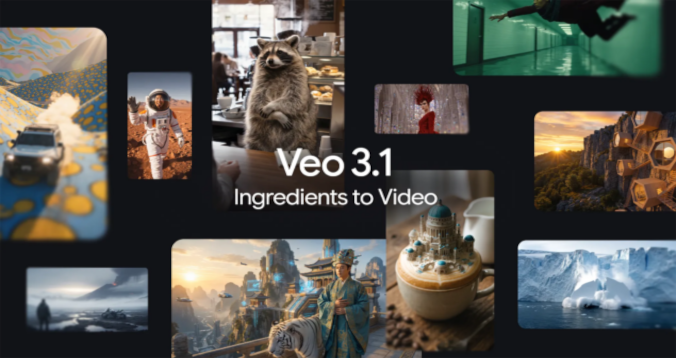
YouTube Shorts continues to change how creators produce short videos. After vertical formats, remixes, automatic captions, 3-minute Shorts and mobile editing tools, a new development is drawing a lot of attention: the arrival of Veo 3 in YouTube Shorts.
With this technology, YouTube allows generating video clips from a simple written idea. The user can describe a scene, choose a style, get a short video and use it in a Short. The big news is that YouTube has announced the integration of Veo 3 Fast, a version designed for Shorts, able to generate clips with sound directly from the phone. YouTube notes that this version is designed to quickly create low-latency clips, with 480p output and sound, from an idea entered by the user.
For creators, it's a small revolution. It's no longer necessary to film every scene yourself, search for royalty-free footage, or use complex software. One idea can become a short video, ready to be integrated into vertical content. For users of All Downloader, this trend raises a very practical question: How to save an AI-generated YouTube Short as an MP4?
In this complete guide, we’ll look at what Veo 3 is in YouTube Shorts, why this topic is so sought-after, how to create an AI clip, how to retrieve a published Short as an MP4, how to maintain good quality, how to organize your files, and which rules to follow to use these videos correctly.
What is Veo 3 in YouTube Shorts?
Veo is a video-generation model developed by Google DeepMind. In YouTube Shorts, it is used to turn a written idea into a video clip. The user can start from a prompt — a textual description — and then generate a short video usable in a Short.
YouTube had already integrated Veo 2 into Dream Screen to generate video backgrounds and standalone clips to add to Shorts. The platform explained that Dream Screen could generate videos from prompts, with improved understanding of human movement, physics, and visual styles.
With Veo 3 the goal goes further: making generation faster, more natural and more integrated into the Shorts experience. YouTube says that Veo 3 Fast can generate clips with sound directly from the phone to help creators turn an idea into actionable content more quickly.
In practice, this can be used to create a scene that’s impossible to film, an original set, a creative transition, a mini-animation, an opening shot, a visual atmosphere, or a comedic sequence.
Why MP4 remains essential for AI videos?
Even if videos are created on YouTube, the format MP4 remains the most convenient format for keeping them. It works on almost all devices: Android smartphone, iPhone, Windows computer, Mac, tablet, smart TV and media player.
Saving an AI video as MP4 lets you keep a local copy, archive it, organize it, send it to a client, rework it in an edit, or publish it on another platform when you have the necessary rights.
For a creator, it's even more important. An AI-generated video can be the result of multiple tries. You may have tested several prompts, styles, versions and edits before getting the right result. If the Short performs well, you need to be able to locate the clean version.
A well-named MP4 file becomes a real asset. It can be used in a compilation, a long-form video, a Reel, a Short, a TikTok, an ad or a campaign archive.
How to create an AI video with YouTube Shorts?
The method may vary depending on your country, account, app and available features. YouTube notes that AI generation tools in Shorts are experimental and that their availability may depend on geographic region or the device language. Some tools are not available in the European Economic Area at the time indicated in the official help documentation.
When the feature is available, the general workflow is simple. Open the YouTube app, go to the Shorts creation tools, then use the spark icon or the AI creation options. Describe the desired scene, choose a style if offered, generate the result, and add it to your Short.
YouTube also says it’s possible to create standalone clips from a text prompt, and in some cases to add up to three reference images from the gallery to guide the visual generation.
A good prompt should be precise. Instead of simply writing “a futuristic city,” you can write: “a futuristic city at night, with blue neon, flying cars, a camera slowly moving down a wet street, cinematic atmosphere.” The clearer your description, the more likely the result will be usable.
Examples of AI videos to create for Shorts
Veo 3 can be useful for various types of content.
A tech creator can generate a futuristic animation to introduce a video about artificial intelligence. A travel account can create a visual scene to illustrate a dream destination. A comedy account can generate an absurd situation in seconds. A business creator can produce an animated background to explain an idea. A musician can create a visual atmosphere around a sound clip. A brand can test mini ad concepts without organizing a full shoot.
Best uses don't always replace real video. They complement it. An AI video can serve as an introduction, a transition, a backdrop, a visual metaphor, or a storytelling element.
For example, if you explain “how an idea goes viral,” you can generate a scene where a small spark turns into a global glowing network. If you present a cybersecurity tutorial, you can create a digital tunnel with padlocks and lines of code. If you make a video about productivity, you can generate a futuristic clock surrounded by apps.
How to save your own AI Short as MP4?
The best approach is always to keep a clean version before or after publishing. If you created your Short in an editing app or with exported files, keep the original version on your phone or computer.
If your video is already published on YouTube Shorts and you want to retrieve it, you can copy the Short's direct link and paste it into All DownloaderLaunch the analysis, then download the MP4 format if the content is accessible and compatible.
The general method is simple:
- Open the YouTube Short.
- Press Share.
- Choose Copy link.
- Paste the link into All Downloader.
- Start analysis.
- Download the MP4 file if the option is available.
- Check the downloaded video immediately.
It’s important to check three elements: duration, image and sound. With AI-generated videos, sound can be a major part of the output. YouTube notes that Veo 3 Fast in Shorts can generate clips with audio, which makes audio verification even more important.
Why do some Shorts IA not download correctly?
There are several possible reasons for a problem. The link may be wrong, the Short may be private, deleted, restricted, inaccessible, or incompatible with the analysis. It may also be content whose elements are delivered in a specific way by YouTube.
Another issue can come from audio availability. Some content generated or published on social platforms may separate audio and video tracks, or apply restrictions depending on the rights used. You should therefore always open the downloaded file to verify that it matches the original video.
If the file has no sound, first try a different player. On desktop, VLC can help check the audio tracks. If there's no sound anywhere, retry the download or choose a different quality if All Downloader offers multiple options.
If the Short is yours, always keep the original export whenever possible. A downloader is handy for retrieving a published video, but it doesn't replace proper organization of source files.
What quality should you choose for an AI-generated Short?
Quality depends on your goal. For a simple mobile backup, medium quality may suffice. For an archive, authorized republication or editing, choose the best quality available.
YouTube notes that Veo 3 Fast in Shorts outputs 480p to prioritize speed and mobile use. This means some AI videos created directly in Shorts may not match the resolution of a 1080p or 4K export produced in an external tool.
That's not necessarily a problem. Shorts is a mobile format. A vertical 480p video can still look acceptable on a phone if it's short, clear and well-composed. But if you want to include that video in a more professional edit, you'll need to pay attention to sharpness, framing and compression.
The right approach is to keep the best available version, then create adapted copies based on intended use.
Vertical format: why 9:16 remains essential?
YouTube Shorts is designed for vertical format. The majority of Shorts are in 9:16, i.e., optimized for a smartphone held vertically.
When creating an AI video, think vertical framing from the start. Place the main subject in the center. Avoid placing text too close to the edges. Leave space at the top and bottom for the YouTube interface, including the title, buttons, comments, the subscribe button, and account information.
If you generate a horizontal scene and then try to convert it into a vertical Short, you risk cutting important elements. The character can move out of the frame, text can become invisible, or the composition can lose its impact.
For an effective AI Short, think vertical from the prompt. For example: "vertical format 9:16, character centered, empty space at the top for text, cinematic lighting".
How to organize your AI videos in MP4 format?
AI videos can quickly multiply. You test one prompt, then another, then a version with a different style, then a final edit, then a published version. Without organization, you end up with files like: video-final.mp4, short-new.mp4, export-3.mp4 or download.mp4.
It’s best to create simple folders:
01 Prompts
02 AI Generations
03 MP4 Exports
04 Shorts published
05 Versions: TikTok, Reels, Shorts
06 Archives
Rename your files clearly. For example:
youtube-shorts-veo3-ville-futuriste-v1.mp4youtube-shorts-veo3-intro-cybersecurite.mp4short-ia-productivite-version-finale.mp4veo3-animation-tech-publiee-youtube.mp4
If you’re a creator, keep the prompt in a text file. That lets you reproduce a style that works. If a video goes viral, you can create a coherent series with the same visual universe.
AI labels and SynthID: why it matters
AI-generated videos should be transparent. YouTube states that its generative tools use labels and SynthID watermarks to flag AI-generated content.
This transparency is essential. An AI video can be artistic, entertaining or useful, but it can also mislead the public if it depicts a fake real-life scene, a well-known person, an invented event or a sensitive situation.
For creators, it’s therefore important not to present a generated video as real evidence. If you use an AI scene to illustrate an idea, you can state that in the video’s description or context.
YouTube also reminds users that using its AI features must comply with its Terms of Service, Community Guidelines, copyright laws, and privacy rights. The platform specifies that the user remains responsible for the content they create, publish, or interact with.
Can you republish an AI-created video made by someone else?
No, not without permission. An AI-generated video is not automatically free to use. Even if it was created with an AI tool, it may belong to the creator who generated it, contain protected elements, or be published under specific terms.
Downloading a video does not give you the right to republish it, modify it, or use it commercially. If you download an AI Short found on YouTube, use it only in an authorized context: personal inspiration, private backup, the creator’s permission, or content explicitly free of rights.
For your own videos, you can archive and reuse them more easily, but you still must respect YouTube's rules, the rights of the people depicted and any restrictions related to the elements used.
All Downloader should be used as a practical backup tool, not as a way to steal other people's work.
How to create a good prompt for an AI Short?
A good prompt should include several elements: the subject, the action, the style, the mood, the framing, and the format.
Weak example:
"robot in a city"
Better example:
"vertical format 9:16, a friendly little robot walking in a futuristic city at night, blue and purple neon, camera following the robot from the front, cinematic atmosphere, smooth motion, realistic lighting"
For a Short, think about readability too. A video that’s too busy can be impressive but hard to understand in a few seconds. The best short clips convey a clear idea.
You can create multiple versions of the same prompt by changing only one element: realistic atmosphere, animated style, golden lighting, a high-angle shot, slow motion, a minimalist set. Then keep the best MP4 files and archive the associated prompts.
How to use a Veo 3 video in a content strategy?
An AI video can serve several purposes.
It can create a “wow” effect at the start of a Short. It can illustrate an abstract idea. It can replace a shot that's hard to film. It can add a visual identity to a series. It can serve as a background for an explanation. It can also help a creator produce faster when real filming is impossible.
For example, a marketing account could create a series "1 business idea in 30 seconds" with a consistent AI intro. A tech account could use AI animations to illustrate concepts like the cloud, cybersecurity, or artificial intelligence. An education account could create stylized historical or scientific scenes.
The most important thing is not to use AI just because it’s trendy. The video must serve the message. A pretty AI-generated clip that’s pointless won’t necessarily hold attention. A simple AI clip that’s perfectly on-topic can be far more effective.
Mistakes to avoid with AI Shorts
The first mistake is publishing an AI video without checking the final render. Some generations can contain odd movements, deformed hands, inconsistent objects or unreadable details.
The second mistake is not checking the sound. With Veo 3, audio becomes part of the content. Poorly matched audio can ruin a video.
The third mistake is not keeping the original MP4 file. If a video performs well, you should be able to find it again.
The fourth mistake is generating a horizontal video for a vertical format. Always keep 9:16 in mind from the start.
The fifth mistake is using prompts that contain personal or confidential information. YouTube recommends not including confidential or personal information when using its AI features.
The sixth mistake is reposting an AI video that doesn't belong to you. Even AI-generated content can be protected.
Conclusion: Veo 3 transforms YouTube Shorts, MP4 remains essential
The arrival of Veo 3 in YouTube Shorts marks an important step for video creation. Users can turn an idea into a video clip, add sound, experiment with styles, and create vertical content more quickly. YouTube is no longer just a video hosting service: the platform is becoming an AI-assisted creation tool.
But creating a video isn't enough. You need to know how to save it, organize it, and retrieve it properly. MP4 remains the simplest format for keeping a video, playing it on any device, archiving it, or reusing it in an authorized edit.
With All Downloader, you can retrieve a YouTube Short published from a direct link when the content is accessible and compatible. The method is simple: copy the link, paste the URL, run the analysis, download the MP4, then check the image, the audio and the duration.
AI video will continue to evolve. Creators who can manage their prompts, MP4 files, archives and rights will have an advantage. YouTube Shorts with Veo 3 opens a new way to produce content, but best practices remain the same: quality, organization, transparency and respect for creators.