

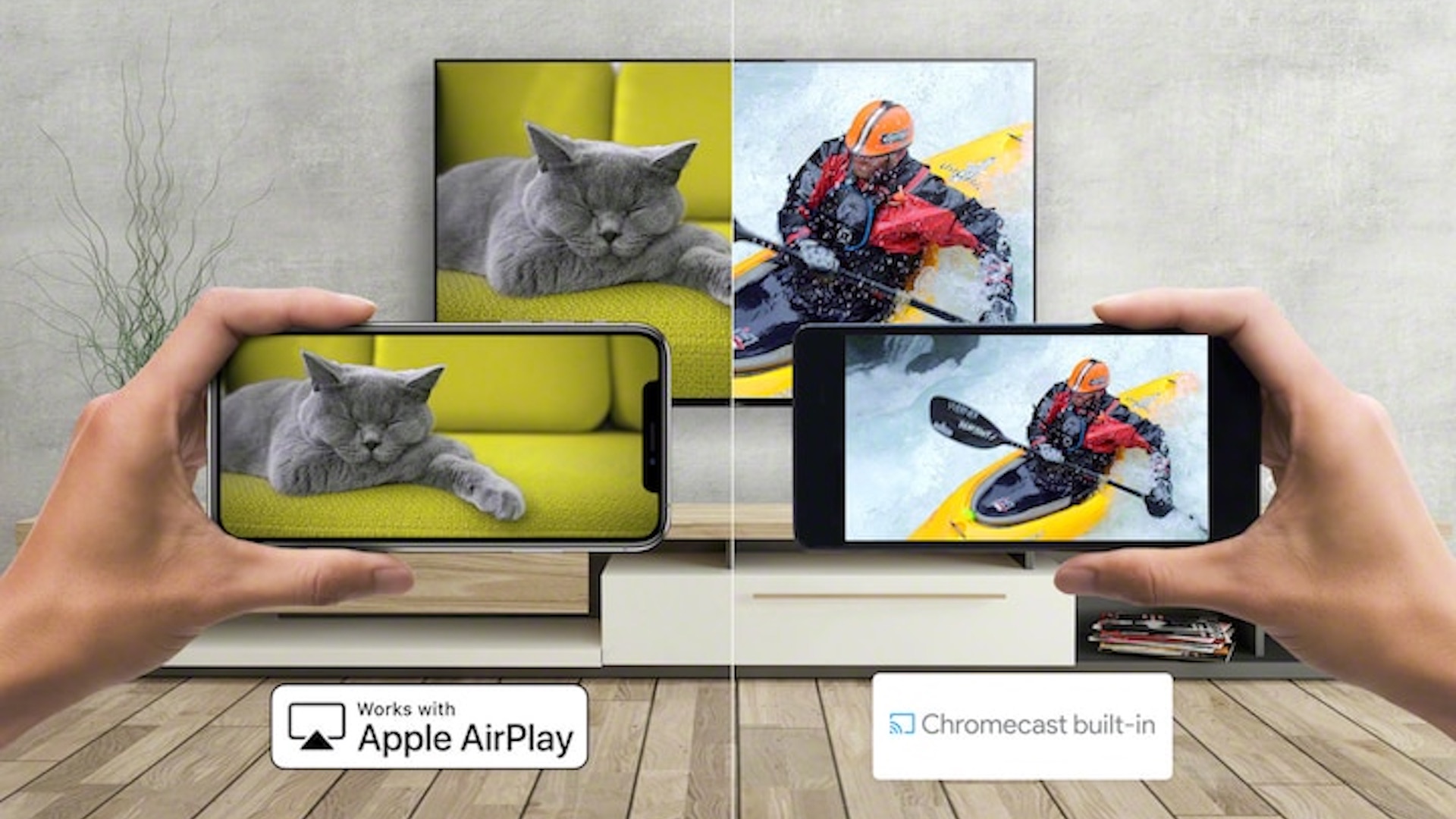
You downloaded a video to your computer or phone and now want to watch it comfortably on a big screen? Several solutions allow you to play a downloaded video on a Smart TV : USB drive, HDMI cable, Chromecast, AirPlay, screen sharing, or playback from the local network.
The most appropriate method depends on the TV, the device on which the video is recorded, and the file format. An MP4 video may play immediately on a recent TV, while a file encoded in a less common format may display a black screen, be rejected, or start without sound.
In this guide you'll discover all the methods for sending a video to a TV, the formats that offer the best compatibility, and solutions to the most common problems.
The advice given applies to videos you created, royalty-free content, or files you are authorized to download and use.
Which method should you choose to watch a video on your TV?
There are six main ways to play a local video on a TV:
- Copy the video to a USB drive.
- Connect the computer to the TV with an HDMI cable.
- Send the video wirelessly with Chromecast or Google Cast.
- Use AirPlay from an iPhone, an iPad, or a Mac.
- Share the video over the home Wi‑Fi network.
- A USB flash drive is generally the simplest method. An HDMI cable offers the best stability, while Chromecast and AirPlay are more convenient for quickly playing a video from a phone.
Which video formats are compatible with a Smart TV ?
The recommended format to maximize compatibility is generally:
- An MP4 container.
- A video track encoded in H.264.
- An audio track encoded in AAC.
- A Full HD resolution of 1920 × 1080 pixels.
You need to distinguish the container from the codec. The .mp4 extension denotes the file container, but the video inside can use different codecs. Two files with the .mp4 extension are therefore not necessarily compatible with the same devices.
Recent TVs can also recognize MKV, MOV, WEBM and AVI files, as well as H.265 or AV1 codecs. Compatibility varies by brand, model and year.
Before converting your file, see our comparison of formats MP4, MOV, WEBM and AVI after downloading.
Method 1: Play a video on the TV with a USB drive
A USB flash drive lets you play a video without an internet connection, without an extra app, and without keeping the computer on. The TV simply needs a USB port and a built-in media player.
Copy the video from a computer
- Plug the USB drive into the computer.
- Open File Explorer on Windows or Finder on Mac.
- Locate the downloaded video.
- Copy the file to the USB drive.
- Wait for the transfer to complete.
- Eject the USB drive properly.
- Plug it into the TV's USB port.
Then use the remote to open the Sources, Inputs, Media or USB menu. The name varies by TV brand.
Select the USB drive, open the folder containing the file, then start playback. If the file does not appear, check its extension and the USB drive's format.
Transfer a video from your phone
You can also copy a video directly from a smartphone to a flash drive equipped with a compatible USB-C or Lightning connector.
Detailed steps are available in our guide on transferring videos from a phone to a USB drive.
Should I format the USB drive as FAT32, exFAT, or NTFS?
The file system used by the USB drive may prevent it from being detected by the TV.
- FAT32: very compatible, but limited to files under 4 GB.
- exFAT: accepts large files and works on many recent Smart TVs.
- NTFS: handy on Windows, but not recognized by some TVs.
If a 4K video exceeds 4 GB, the FAT32 format won't allow you to copy it. Use exFAT if your TV supports it.
Warning: formatting erases the key's contents. Back up any important files before starting the operation.
The USB drive is recognized, but the video doesn't appear.
If photos and folders appear but not the video, the TV player probably doesn't recognize its extension or codec.
- Rename the file with a short, simple name.
- Avoid special characters in the name.
- Move the video to the root of the USB drive.
- Check that the transfer completed successfully.
- Test the file on a computer.
- Convert it to MP4 with H.264 video and AAC audio.
The guide Downloaded video cannot be played explains how to identify the format and perform a compatible conversion.
Method 2: Connect a computer to the TV with an HDMI cable
An HDMI cable is the most reliable solution when the TV refuses to play the file directly. The TV simply becomes a display for the computer. Compatibility then depends on the player installed on the PC or Mac, not on the TV's media player.
- Plug one end of the HDMI cable into the computer.
- Plug the other end into the television.
- Use the remote to select the corresponding HDMI input.
- Set the computer display to duplicate or extend.
- Open the video with your usual player.
- Switch the player to full screen.
If your computer doesn't have an HDMI port, use a USB-C-to-HDMI, DisplayPort-to-HDMI, or Mini DisplayPort-to-HDMI adapter that matches its connector.
What to do if the image appears without sound?
The computer can continue to send audio to its own speakers. In the audio settings, select the TV or the HDMI output as the playback device.
If the problem is with the file itself, see solutions for a Downloaded video with no sound.
Method 3: cast a local video with Chromecast or Google Cast
Chromecast lets you send a video to a compatible TV without using a cable. The phone, tablet, or computer typically needs to be on the same Wi-Fi network as the TV.
The presence of a Cast icon in an app does not always mean local files are supported. Some apps only allow casting content from their own services.
To stream a video recorded on the device:
- Connect the phone and TV to the same Wi‑Fi network.
- Open an app that can play and cast local files.
- Select the downloaded video.
- Tap the Cast icon.
- Choose the TV or Chromecast.
- Wait for playback to start.
Streaming quality depends on the Wi‑Fi connection, the video's file size, its bitrate, and the capabilities of the phone or TV.
Method 4: use AirPlay from an iPhone, iPad, or Mac
AirPlay lets you stream a video to an Apple TV or a compatible Smart TV. Both devices must be connected to the same Wi-Fi network.
- Open the video on the iPhone, iPad, or Mac.
- Tap the AirPlay icon when it's available.
- Select TV.
- Enter the code shown on the screen if prompted.
- Start playback.
If the player doesn't offer AirPlay, use Screen Mirroring from the Control Center. This transmits the device's entire display, including any notifications that may appear.
Turn on Do Not Disturb before casting if you don't want personal messages to be visible on the TV.
Method 5: use your phone’s screen sharing
Many Android smartphones include a screen mirroring feature. It may be called something different depending on the brand:
- Smart View.
- Screen sharing.
- Screen Cast.
- Screen sharing.
- Wireless display.
- Wireless projection.
Enable the feature from the phone's quick settings, select the TV, then open the video. The entire screen will be mirrored on the TV.
This method is simple, but it can cause a slight delay between picture and sound. It also depends on the quality of the Wi-Fi network.
Method 6: Play a video from the local network
A Smart TV can sometimes access videos stored on a computer, a media server, or a NAS connected to the home network.
This method is especially convenient for a large video collection, as it avoids copying each file to a USB drive.
- Connect the TV and computer to the same network.
- Enable media sharing on your computer or NAS.
- Add the folders containing the videos.
- Open the TV's media app.
- Select the detected server.
- Browse the folders and play the video.
Some media servers can automatically convert a video when its format is not recognized by the TV. However, this operation, called transcoding, requires a sufficiently powerful computer or server.
Why does the TV display "format not supported"?
This message can appear for several reasons:
- The file container is not recognized.
- The video codec is incompatible.
- The audio codec is not supported.
- The resolution is too high.
- The video bitrate exceeds the TV's capabilities.
- The encoding profile is too recent.
- The file is incomplete or corrupted.
- The file name contains incompatible characters.
The most universal solution is to convert the video to MP4 with an H.264 video track and AAC audio. Keep the original file until you've verified the quality of the new version.
The video works, but no sound is coming from the TV
A TV may recognize the video codec but reject the audio codec. The file will then display the image correctly without producing sound.
First check that the TV is not muted and that the correct audio output is selected. Then test the file on another device.
If audio works on the computer but not on the TV, convert only the audio track to AAC while keeping the video when the software allows it. This avoids unnecessary re‑compression of the picture.
Why does the video stutter on the TV?
Stuttering can be caused by the USB drive, the Wi-Fi network, the file's bitrate, or the TV's hardware limits.
- Try another USB port.
- Use a faster USB drive.
- Move the router closer to the TV.
- Prefer a 5 GHz Wi-Fi network if its range is sufficient.
- Stop any ongoing downloads on the network.
- Lower the video bitrate.
- Convert the file to a more widely supported codec.
- Try an HDMI cable to distinguish a network problem from a file problem.
Find a more complete diagnosis in our article on downloaded videos that stutter or freeze.
How can I reduce a video that is too large for TV?
A 4K video with a very high bitrate may exceed the playback capabilities of an older Smart TV. It may also be too large for a FAT32-formatted USB drive.
You can then:
- Switch from 4K to Full HD.
- Reduce the video bitrate slightly.
- Use the H.264 codec for better compatibility.
- Remove unnecessary audio tracks.
- Convert the file to MP4.
- Use an exFAT USB drive compatible with the TV.
Avoid over-compressing, which would cause loss of detail and blockiness in fast scenes. Our guide explains how reduce the size of an MP4 video without losing too much quality.
HDR video too dark or colors washed out on the TV
An HDR video may look too dark, gray, or washed out when the TV, player, or connection doesn't correctly handle brightness and color information.
- Make sure HDR mode is enabled on the input you're using.
- Try another media player.
- Use an HDMI cable compatible with the desired resolution.
- Temporarily disable power-saving modes.
- Convert the HDR video to SDR if the TV isn't compatible.
Check out our feature on the HDR videos that are too dark or have washed-out colors to understand the difference between HDR and SDR.
How to preserve quality on a large screen?
A video that looks sharp on a small phone can appear blurry on a large TV. The screen magnifies compression artifacts and cannot recreate details missing from the original file.
- Choose the best available quality when downloading is permitted.
- Avoid repeated conversions.
- Keep the original resolution when the TV supports it.
- Don't artificially upscale a small video to 4K.
- Use a bitrate appropriate for the resolution.
- Keep a copy of the original file.
To keep a file clean from the start, read our tips for download an HD video without unnecessarily losing its quality.
USB drive, HDMI, Chromecast or AirPlay: which option should you choose?
Choose the USB drive if:
- You want to watch the video offline.
- The file is already compatible with the TV.
- You don't want to leave another device turned on.
- You're looking for a simple, portable method.
Choose the HDMI cable if:
- The TV won't play the file directly.
- You need a stable connection.
- The video uses a particular format.
- The Wi-Fi is slow or unstable.
Choose Chromecast or AirPlay if:
- The video is stored on your phone.
- The TV and mobile are on the same network.
- You don't want to use a cable.
- The file is recognized by the streaming app.
Choose the local network if:
- You have a large video library.
- Files are stored on a computer or a NAS.
- You want to access videos from multiple screens.
- You want to organize your content into folders.
Frequently asked questions
Why doesn't my TV recognize the USB drive?
The USB drive may use an incompatible file system, draw too much power, or be connected to a port reserved for another function. Try a different port and check whether the TV supports FAT32, exFAT, or NTFS.
What is the best format to play a video on a TV?
MP4 with H.264 video and AAC audio generally offers very good compatibility, but you should always check your TV's manual.
Can you cast a video without an Internet connection?
Streaming can sometimes work on a local network without Internet access, but devices must be able to communicate on the same Wi‑Fi network. Some apps, however, still require an active connection.
Why doesn't the MP4 file work?
The MP4 extension doesn't guarantee compatibility. The video or audio may use a codec the TV can't decode.
How to watch a video downloaded from an iPhone?
You can use AirPlay, screen mirroring, an adapter to HDMI, or a dongle compatible with the iPhone connector.
How do I find the downloaded video on my phone?
It is usually located in the Downloads folder or in the Files app. See our guide for find downloaded files on iPhone and Android.
Conclusion
A USB stick remains the most accessible way to play a downloaded video on a Smart TV. Copy the file, plug in the drive and open the TV's media player. If the file is rejected, convert it to MP4 with an H.264 video track and an AAC audio track.
The HDMI cable is the most reliable solution in case of incompatibility, since the computer handles playback. Chromecast, AirPlay and screen mirroring are especially convenient for sending a video from a phone without having to deal with a USB stick.
Finally, always choose content that you have the right to download and view. Good file quality, a compatible format, and a stable transfer method let you fully enjoy your videos on the big screen.